 Vanoor
Guide
During a run on your Apple Watch
On this page
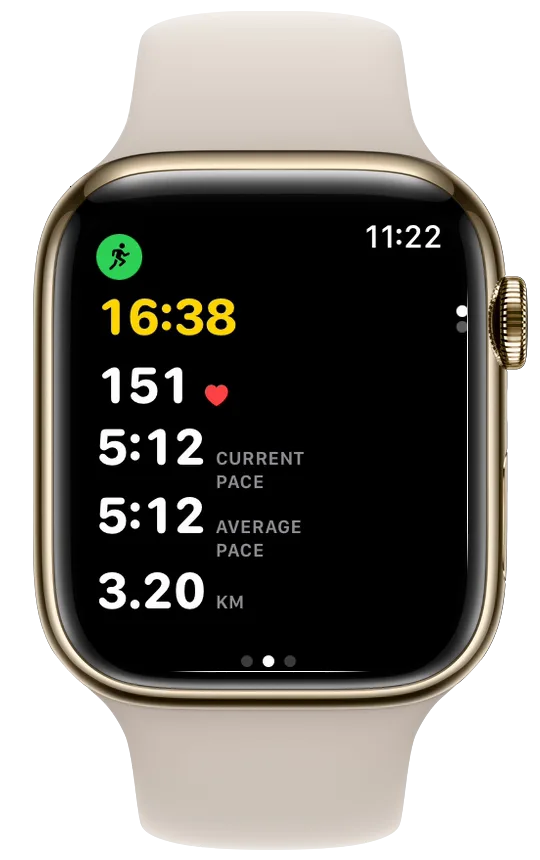
A Vanoor run on the Watch has three areas side by side. Controls is on the left, your data pages are in the middle and Now Playing is on the right. This guide walks through a run from the Start button to the effort rating at the end.
Start the run
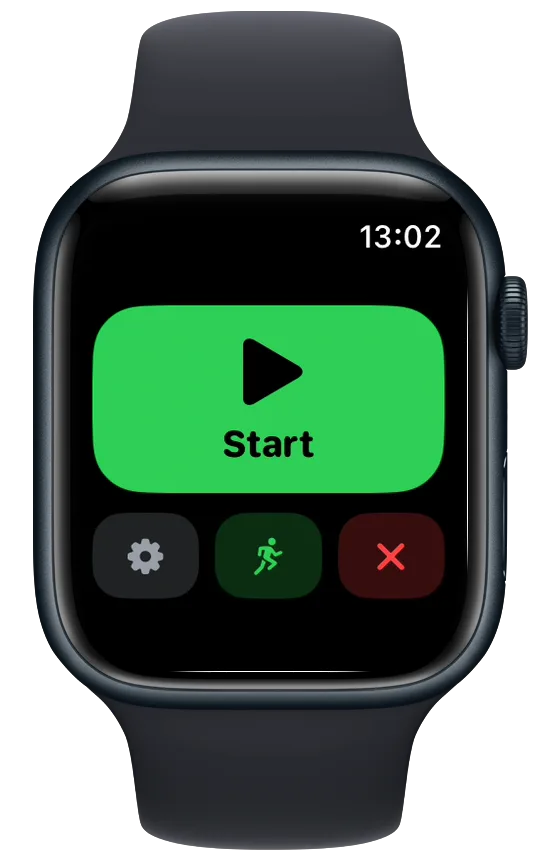
Open Vanoor on the Watch and pick a synced route, or choose a run without a route. The run opens on the Controls page with one big green Start button. Below it are three small buttons: a gear for run settings, the activity type (run, walk or hike) and a red X to leave.
Tap Start. If you kept the start countdown on (Settings → During a Run → Start countdown on the iPhone, 3 seconds by default), you get a 3, 2, 1 first. The Watch then moves to your first data page.
How the run is laid out
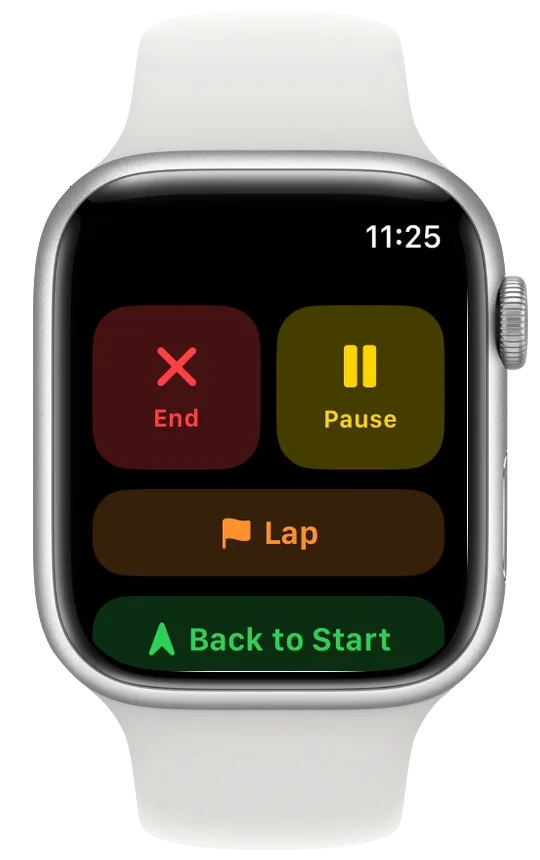
- Swipe right from the data pages to reach Controls, with End, Pause, Lap, Back to Start and Run Settings.
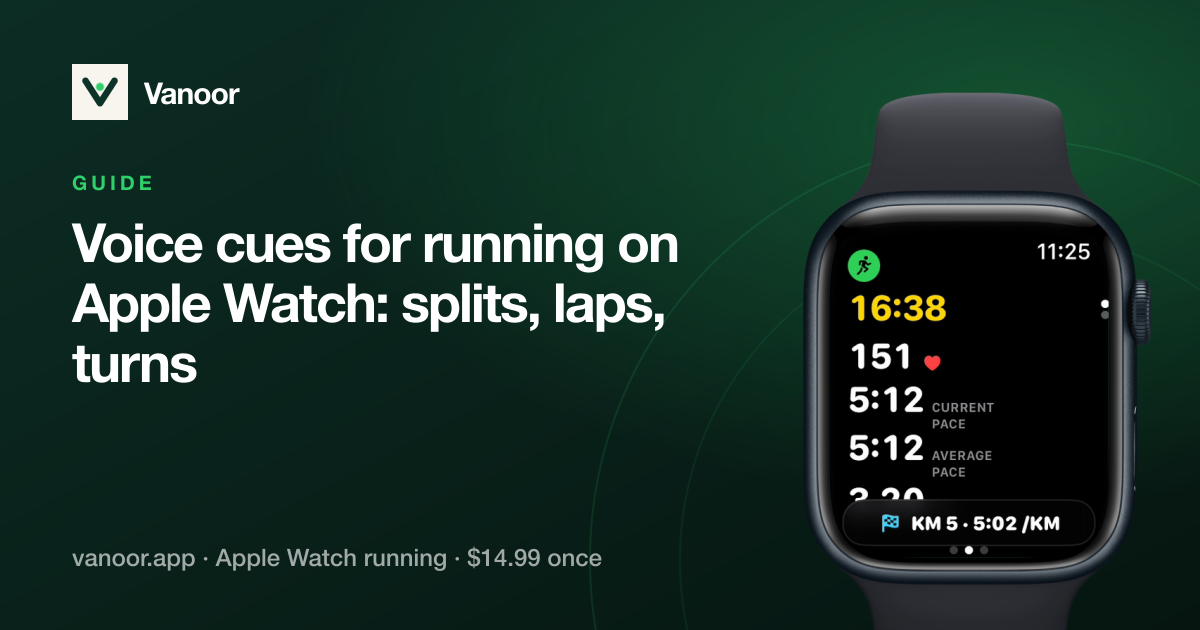
- The data pages sit one above the other. Swipe up or down, or turn the Digital Crown, to move between them. You choose these pages on the iPhone, as the Watch screens guide explains.
- Swipe left from the data pages to reach Now Playing, where you can pause music or a podcast and change the volume.
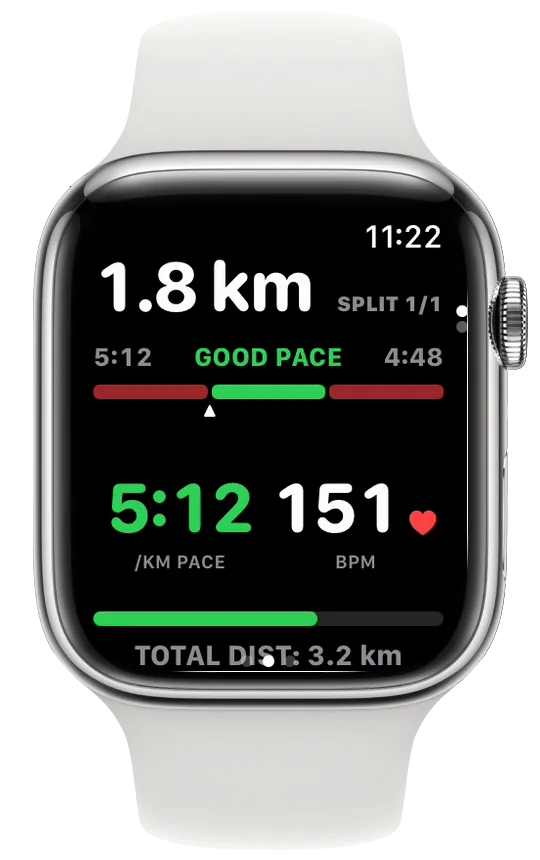
On a planned workout, a Split Target page sits at the top of the stack. It shows the step you are on, its target band and how you are doing against it.
Pause and resume
- On the Controls page, tap Pause. The button turns green and reads Resume.
- Press the side button and the Digital Crown at the same time. This pauses or resumes from any page, without looking.
- With the Controls page showing, the Double Tap hand gesture presses Pause or Resume on Apple Watch models that support it (watchOS 11 or later).
Auto-pause can also stop the clock for you when you stand still. It is on by default; the auto-pause guide explains how it decides.
Mark a lap
Tap the orange Lap button on the Controls page, or double tap the screen with one finger on a data page. A thin banner at the bottom shows the lap number, time and pace. Lap is hidden while the run is paused. The laps guide has the details.
Back to Start
Back to Start opens a map with the trail you have run so far, an arrow pointing the way back and the distance left to your start. When you get there, it says You're back. Close it with the X in the top corner and the run carries on as before.
The button shows on a run with a route, and on a free run that has the Map page. The map only draws while Back to Start is open, so it costs no battery the rest of the time.
Run Settings
Scroll down on the Controls page and tap Run Settings. The run keeps going underneath while you change things.
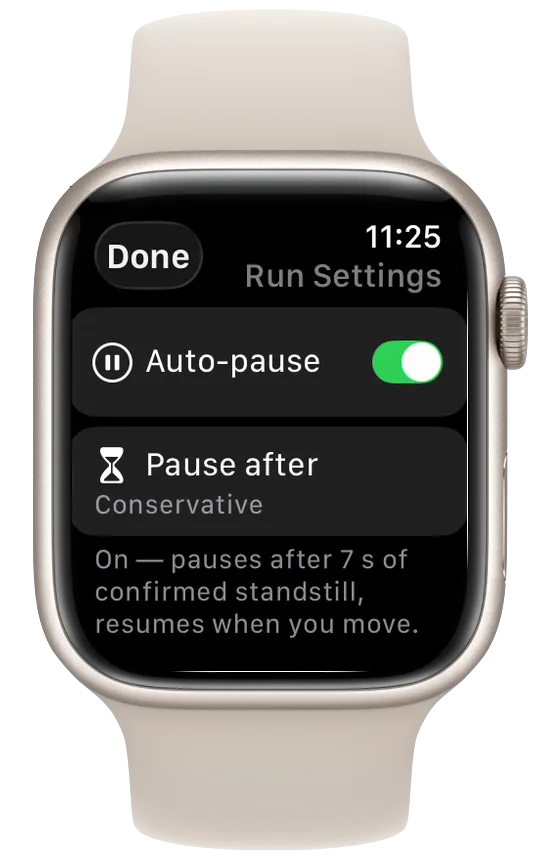
- Auto-pause and Pause after: switch auto-pause on or off, or change how long you have to stand still. This change is kept for your next runs too.
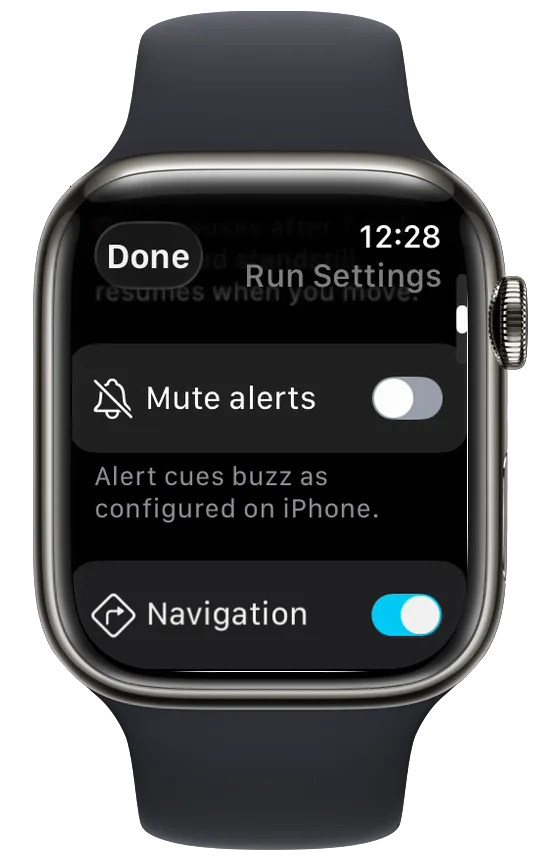
- Mute alerts: silences your pace, heart-rate, distance and off-route alerts for this run. If no alert is switched on, the row reads No alerts set up.
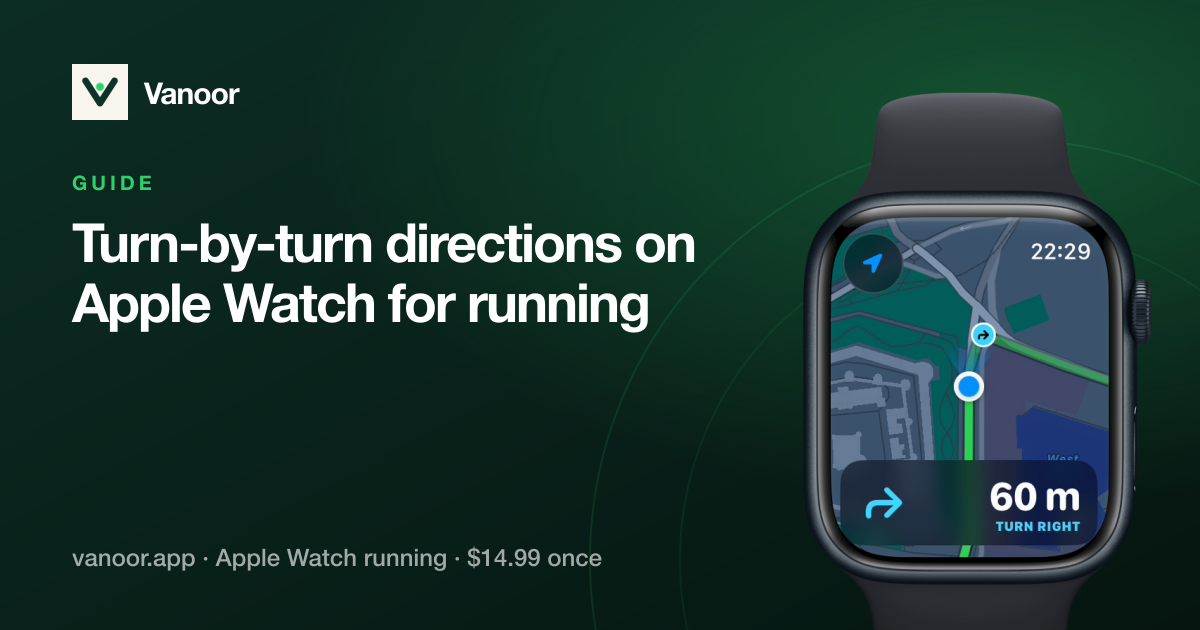
- Navigation: on a run with turn-by-turn, turns off the turn cards, turn buzzes, spoken turns and the turn mark on the map for this run. The route line and the off-route alert stay.
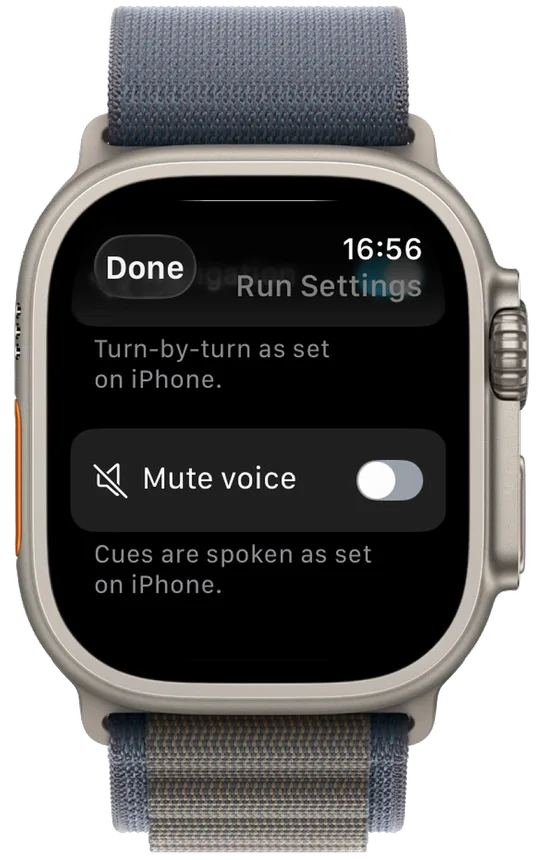
- Mute voice: stops every spoken cue for this run. If no spoken cue is switched on, the row reads Voice is off.
Mute alerts, Navigation and Mute voice only last for the run you are on. Your settings on the iPhone stay as they are. Tap Done to go back.
End and save the run
- On the Controls page, tap End.
- Tap Save Run. Discard Run asks you once more before anything is thrown away, and Cancel takes you back to the run.
- The Watch asks How hard was it? Turn the Digital Crown to pick a number from 1 to 10, then tap the tick.
A summary follows with distance, time, average pace, elevation, average heart rate, calories and your laps, and a line that says Saved to Apple Health. Tap Done. The run also goes to your iPhone, where you find it in the Activity tab. The Activity guide covers what you see there.
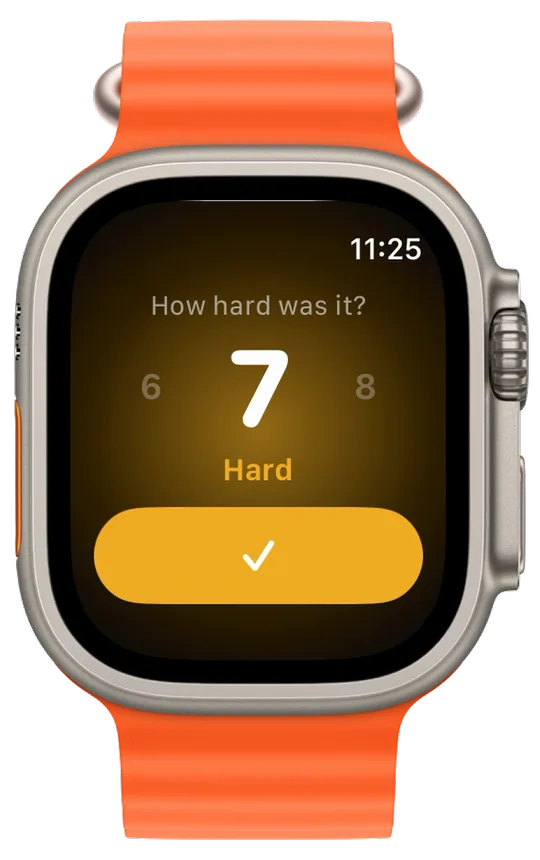
- On watchOS 11 or later, the effort you pick is saved with the workout in Apple Health.
- A run that covered less than 5 m or lasted under 10 seconds isn't saved. The Watch says no movement was detected.
- On the Map page a double tap zooms the map, and on the Metronome page the screen has its own controls, so the double tap for a lap doesn't work on those two.
Related guides
Picked by shared topics.
Keep the Watch. Upgrade the run.
Vanoor: offline route navigation, race pacing and structured workouts on the Apple Watch you already own.
Get Vanoor on the App Store 7-day free trial · $14.99 once, no subscription · no account