 Vanoor
Guide
Turn-by-turn directions on your Apple Watch
On this page
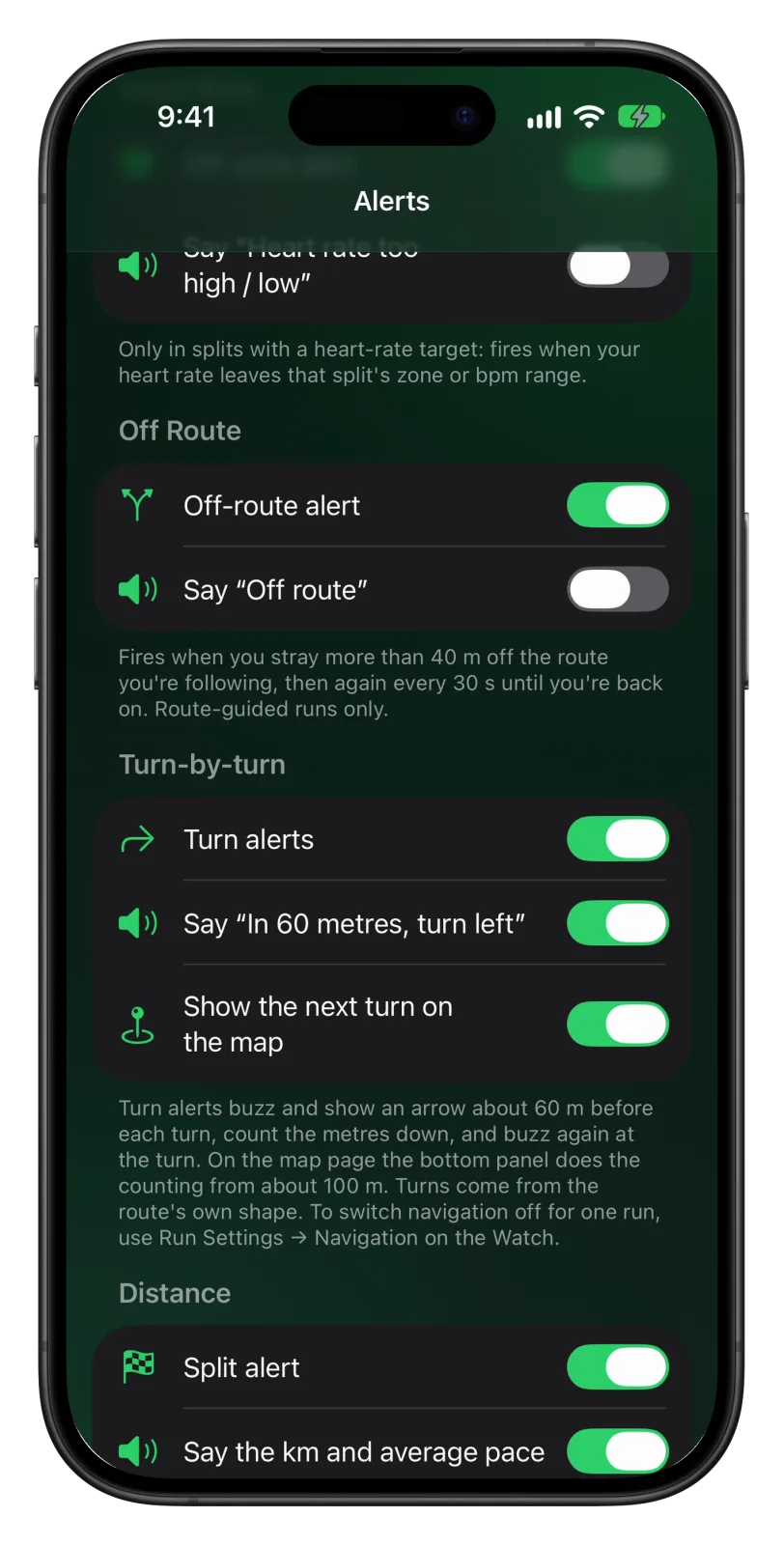
When you follow a route, Vanoor can tell you about each turn before you reach it. You get a card with an arrow and the metres left, a tap on the wrist, and a spoken line if you want it. Turn cues are off until you switch them on in Settings → Alerts.
Switch turn cues on
- Open Vanoor on your iPhone and tap the gear on Home to open Settings.
- Tap Alerts and scroll to Turn-by-turn.
- Turn on Turn alerts for the card and the buzz.
- Turn on Say “In 60 metres, turn left” if you also want to hear each turn.
The third switch, Show the next turn on the map, is already on. It marks the next turn on the Watch map page once Turn alerts or the spoken turn is on. Your settings go to the Watch by themselves, and the Watch reads them when you open a run.
Where the turns come from
When you save a route on the iPhone, it works out every real turn from the shape of the route. The list goes to the Watch with the route, so turn cues work offline and with your phone at home. This works the same for an imported GPX file and for a route you drew in Vanoor. A free run has no route, so it has no turn cues.
What you see before a turn
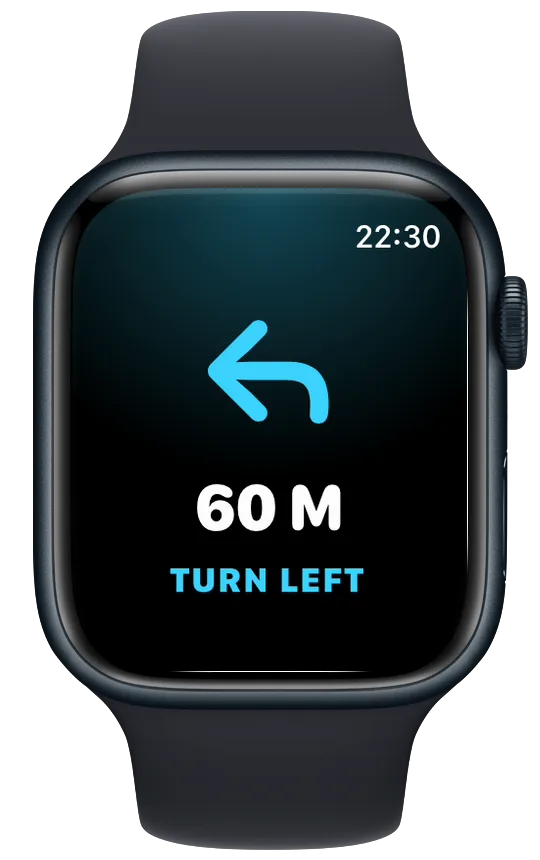
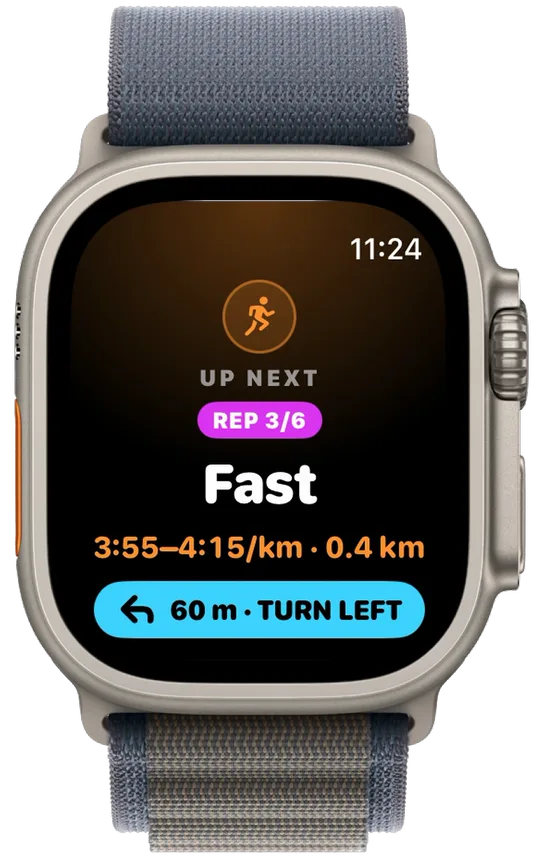
- About 60 m before the turn, a full-screen card shows the arrow, the metres left and the direction, for example TURN LEFT. You feel a buzz.
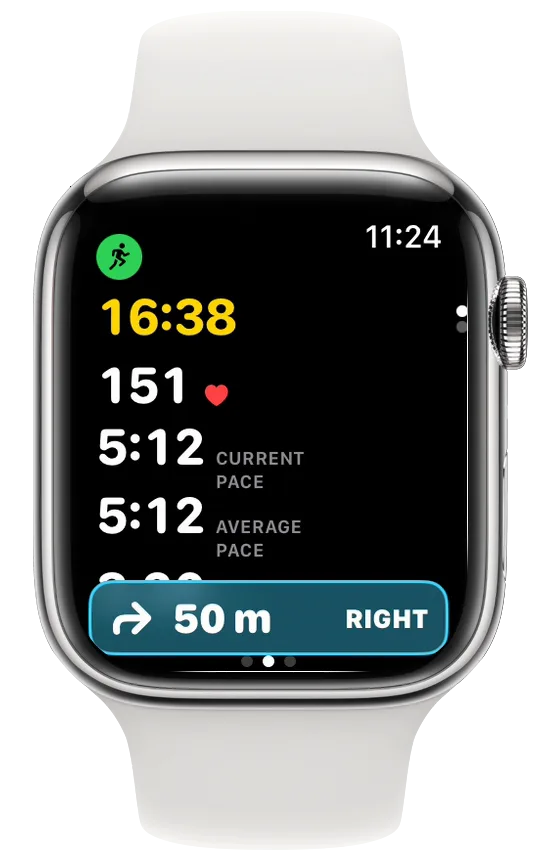
- After the card, a cyan strip at the bottom of the page you are on keeps counting the metres down.
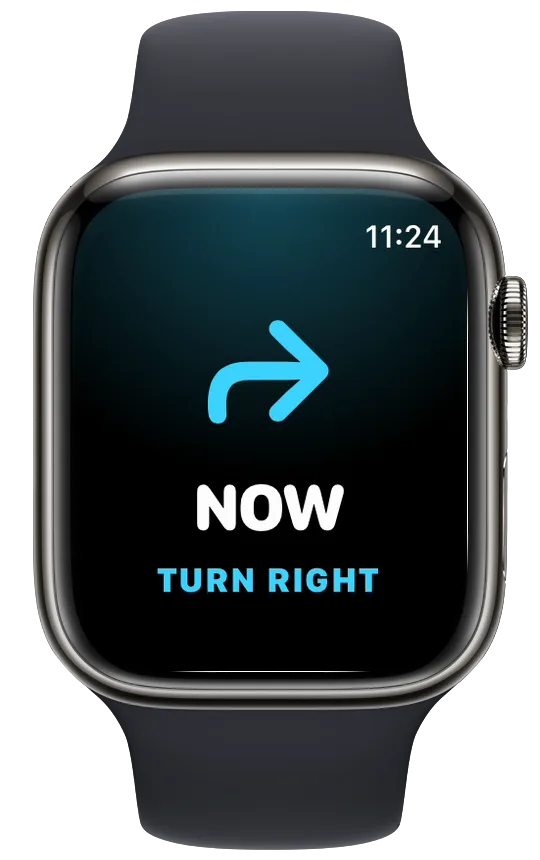
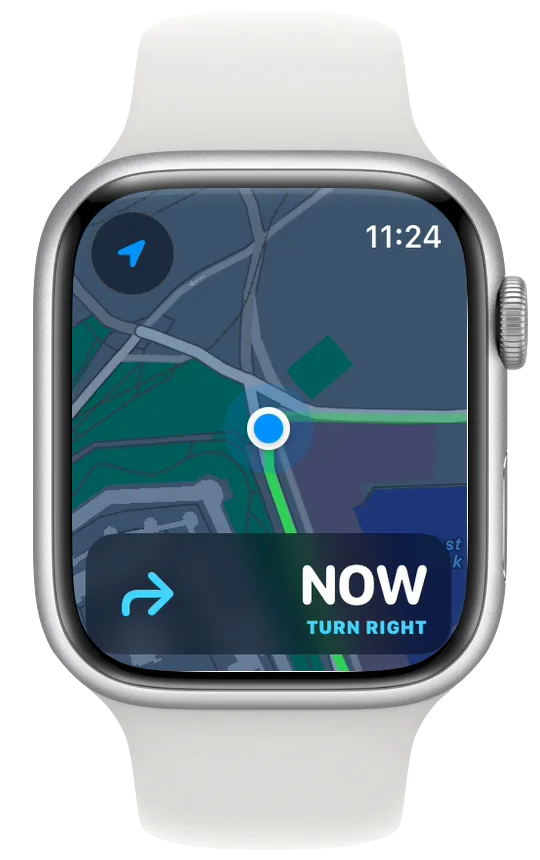
- At the turn you feel a second buzz, and the card reads NOW.
On the map page
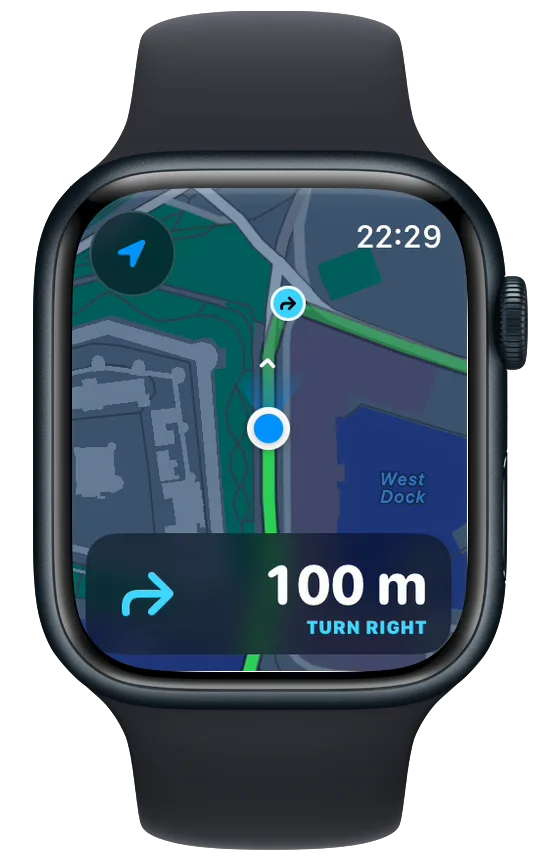
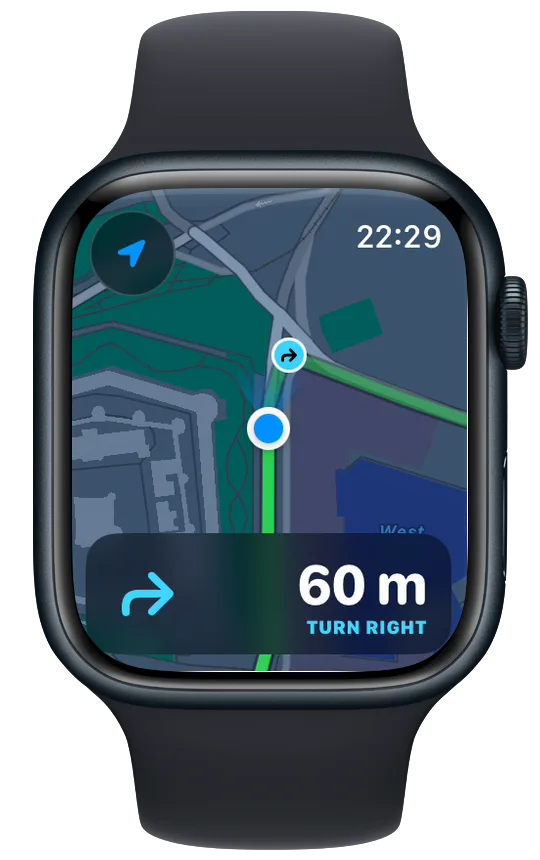
On the map page you don't get the full-screen card, so the map stays in view. Instead, the panel at the bottom switches to directions from about 100 m before the turn: the arrow on the left, the metres on the right. With Show the next turn on the map on, the coming turn is also marked on the map itself.
Spoken turns
With the spoken turn switched on, the Watch says “In 60 metres, turn right.” before the turn and “Turn right.” at it. Gentle bends are spoken as “bear left” or “bear right”, and a sharp one as “turn sharp left”. If your units are miles, the distance is spoken in yards. The voice plays through your AirPods, or the Watch speaker when none are connected. The voice cues guide covers every spoken line.
Turn navigation off for one run
- During the run, swipe right to the Controls page.
- Scroll down and tap Run Settings.
- Turn off Navigation.
That run then has no turn cards, turn buzzes, spoken turns or turn mark on the map. The route line and the off-route alert stay. Your next run uses your iPhone settings again. The during a run guide shows the Run Settings screen.
- Mute alerts in Run Settings also silences the turn cards and turn buzzes.
- If you leave the route, the off-route alert (a separate switch in Settings → Alerts) tells you. It fires more than 40 m from the line.
- For how Vanoor compares with other ways of getting directions on the wrist, read turn-by-turn running on Apple Watch.
Related guides
Picked by shared topics.

Keep the Watch. Upgrade the run.
Vanoor: offline route navigation, race pacing and structured workouts on the Apple Watch you already own.
Get Vanoor on the App Store 7-day free trial · $14.99 once, no subscription · no account