 Vanoor
Guide
Import a GPX route into Vanoor
On this page
Any GPX file on your iPhone can become a Vanoor route. You open it, check the details on one sheet, and Vanoor sends it to your Apple Watch without another tap.
Step 1: Open the file in Vanoor
Open the file where it landed: the Files app, an AirDrop, a Mail attachment or a Safari download. Tap the share button and choose Open in Vanoor. Vanoor switches to the Routes tab with the file ready to save.
From inside the app, go to the Routes tab, tap + in the top right corner and choose Import GPX, then pick the file. An empty Routes tab also shows an Import GPX button.
Step 2: Check the Save Route sheet
The Save Route sheet shows what Vanoor read from the file:
- Name, filled in from the file. Change it to something you will recognise on the Watch.
- Type: Road, Trail or Mixed. The Watch shows it next to the distance.
- Notes, which are optional.
- A GPX section with the distance, the number of points and the file name.
Tap the tick in the top right to save. If the file carries no elevation data, Vanoor warns you that the elevation chart will be empty. You can still run the route.
Step 3: Let it sync to the Watch
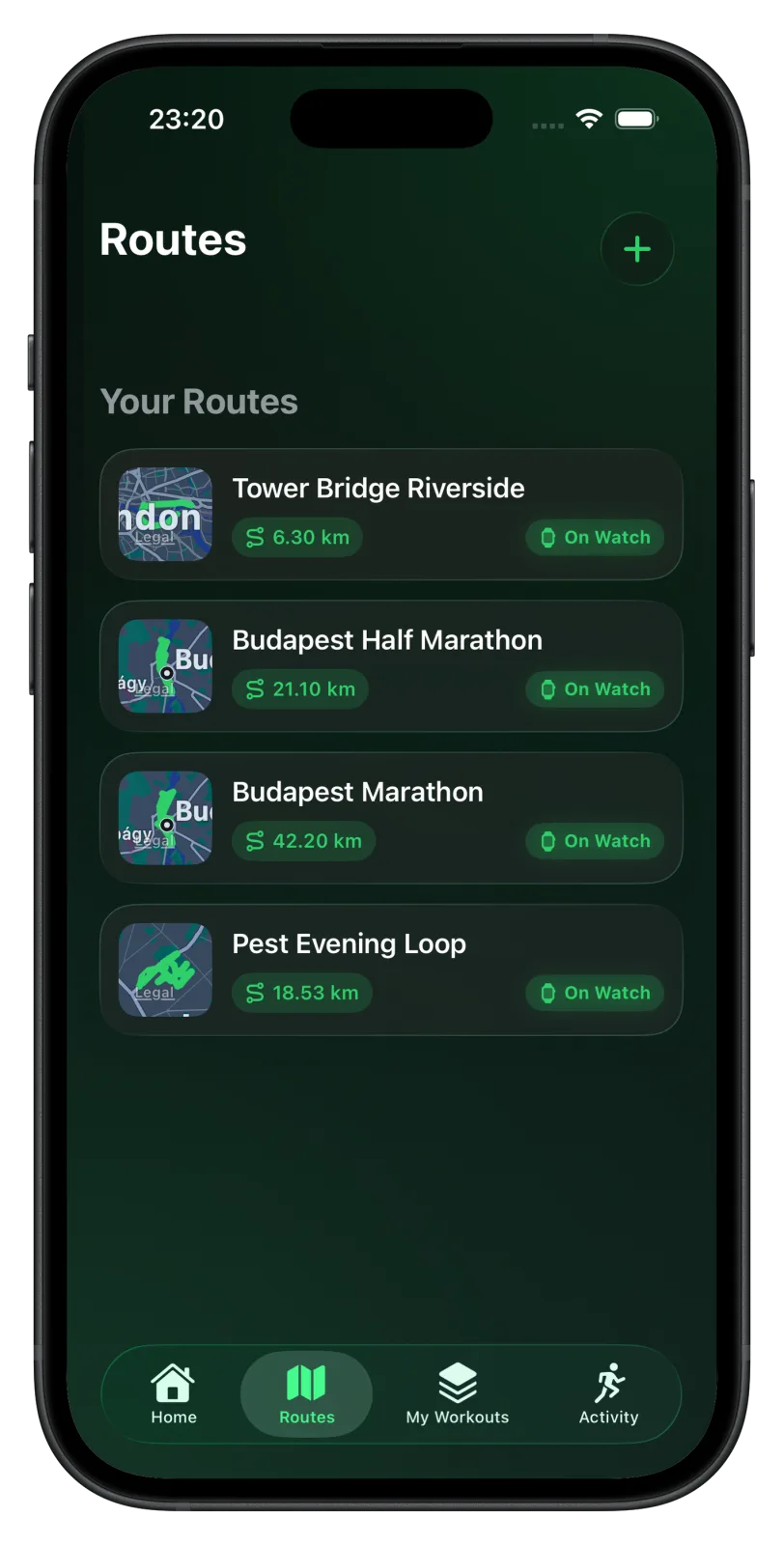
A saved route goes to your Apple Watch automatically. Its card in the Routes list shows a small tag:
- Syncing while it is on its way.
- On Watch once the Watch has confirmed it has the route.
- Try Again if the last send failed.
- Off Watch when the route is only on the iPhone, for example after you removed it from the Watch.
If the Watch is out of reach when you save, Vanoor sends every waiting route as soon as the Watch connects again. Tap a route to open its page. The large button there shows the same state (Send to Watch, Sending to Watch…, On Watch or Try Again), and Remove from Watch takes the route off your wrist while keeping it on the iPhone.
With the Watch map set to Offline, the iPhone also sends map tiles along the route.
Step 4: Start the route on the Watch
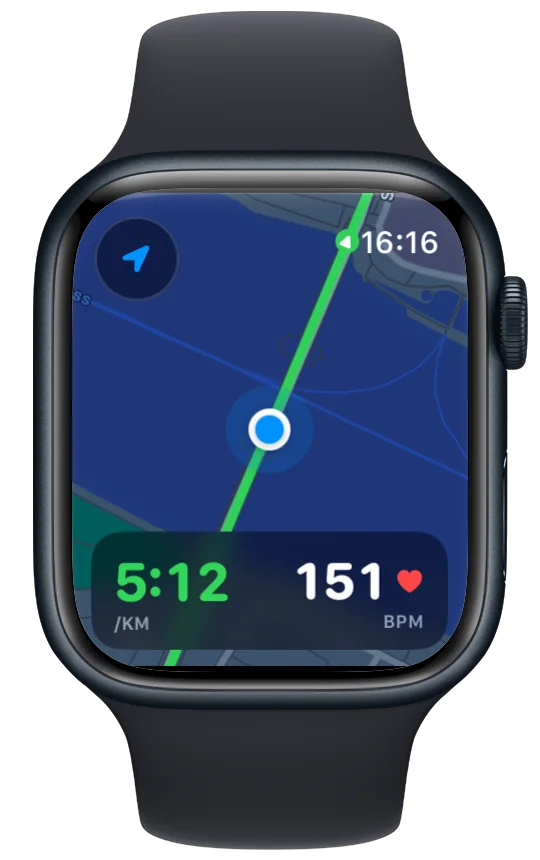
Open Vanoor on the Watch. Your routes are listed under Routes with their distance and type. Tap one and the run screen opens on the Controls page, where you tap Start. A 3-2-1 countdown runs first unless you have switched it off in Settings. You can also reach your routes through Freerun + Route, under Follow a route.
The guide to following GPX routes on Apple Watch lists places to download GPX files, or you can draw a route yourself.
- Vanoor reads GPX tracks and GPX routes. When a file has a track, Vanoor follows the track. A file with only route points gives straight lines between those points, so export a track if your planner offers one.
- The pencil on a route's page lets you rename it, change its type, add a note, make a reversed copy with Duplicate & reverse, trim it or delete it.
- Swiping left on a route in the Watch list deletes it from the Watch. The iPhone then shows Off Watch and keeps its copy.
If something goes wrong
- "This GPX file could not be read." The file is not valid GPX. Download or export it again.
- "This GPX file does not contain a track or a route." or "...any track or route points." The file has nothing Vanoor can follow. Export it again as a track.
- The tag stays on Try Again. Open the route and tap Try Again. If Vanoor says Apple Watch is not available, check that the Watch is paired, nearby and has Vanoor installed.
- The Watch shows "Free week's over" and locked routes. Unlock Vanoor on the iPhone to start runs again.
Related guides
Picked by shared topics.
Keep the Watch. Upgrade the run.
Vanoor: offline route navigation, race pacing and structured workouts on the Apple Watch you already own.
Get Vanoor on the App Store 7-day free trial · $9.99 once, no subscription · no account