 Vanoor
Guide
Use the Watch map and offline maps in Vanoor
On this page
The map page on your Apple Watch can show live Apple Maps, or an offline copy that your iPhone prepares before the run. Here is how to switch, what the offline copy includes and how to use the map mid-run.
Choose Apple Maps or Offline
On the iPhone, open the Home tab, tap the gear in the top right corner and find Map on Watch under Maps & Sync. There are two choices:
- Apple Maps is the live map. It takes no storage, but it needs a connection to load fresh map areas.
- Offline has your iPhone render the map tiles and send them with the route. The Watch needs no network during the run, which is also easier on the battery.
On the Watch, open Vanoor, swipe to the Settings page left of the home screen and change Map in the Map section. The iPhone's setting replaces the Watch's the next time the iPhone sends its settings, so set it on the iPhone if you want it to stay.
What Offline covers
When a route goes to the Watch with Offline selected, the iPhone renders a strip of Apple Maps along the whole route at three zoom levels and sends it to the Watch. Switching to Offline later also prepares tiles for the routes already on your Watch. The tiles match the light or dark appearance Vanoor uses on your iPhone, and overlapping routes share tiles on the Watch.
If you leave the strip, the map behind you goes dark, but the route line, its direction arrows and your position are still drawn. A freerun has no route and so no tiles; in Offline mode it shows your trail on a dark background. The guide to offline maps on Apple Watch has more background.
Moving around the map
- Drag to look around. The map stops following you and the locate button in the top left turns white. After 15 seconds untouched it centres on you again.
- Tap the locate button to centre on yourself straight away.
- Double tap to zoom in a step. After the closest step, a double tap returns to the widest view. Offline mode has three steps.
- The Digital Crown moves between your run pages. It does not zoom the map.
While it follows you, the map is heading-up. It turns so the direction your wrist faces is at the top, using the Watch's compass, and falls back to your direction of travel from GPS when there is no compass reading. In Offline mode the map turns north-up while you drag it around.
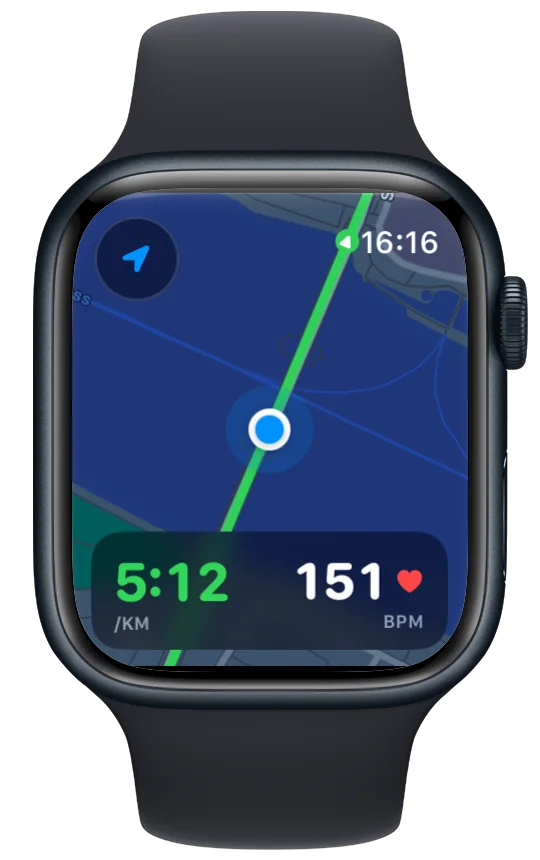
Pace and heart rate on the map
A panel along the bottom of the map page shows your current pace and heart rate in large numbers. To give the whole screen to the map, turn it off on the iPhone with Pace and heart rate on the map under Watch Experience in Settings, or on the Watch with Pace & HR in Settings, in the Map section. The change applies from the next run you start.
The map on freeruns
Map screen on freeruns, under Watch Experience in the iPhone's Settings, decides whether runs without a route get a map page. It is on by default, and the map then draws the trail you have run behind you. Turn it off and freeruns skip the map page. Runs with a route are not affected.
- The iPhone only renders offline tiles while Map on Watch is set to Offline on the iPhone.
- The map is only drawn while its page is on screen. When you swipe onto it, a short spinner shows while it loads.
If something goes wrong
- The offline map is dark along your route. Check that Map on Watch is set to Offline on the iPhone, then open the route's map on the Watch with the iPhone nearby. When the Watch finds a tile missing along the route, it asks the iPhone to send that route's tiles again.
- A map setting you changed on the Watch went back. The iPhone's settings replaced it. Change it on the iPhone instead.
Related guides
Picked by shared topics.


Keep the Watch. Upgrade the run.
Vanoor: offline route navigation, race pacing and structured workouts on the Apple Watch you already own.
Get Vanoor on the App Store 7-day free trial · $9.99 once, no subscription · no account