 Vanoor
Guide
Auto-pause and pausing by hand
On this page
Auto-pause stops the run clock when you stand still, at a crossing for example, and starts it again when you move off. It is on by default and uses the Conservative setting.
Turn auto-pause on or off
You can change it in three places. They all change the same setting.
- On iPhone: Settings → Watch Experience → Auto-pause. While it is on, Auto-pause after lets you pick Conservative or Standard.
- On the Watch before a run: swipe right from the Vanoor home screen to Settings, where you'll find Auto-pause and After.
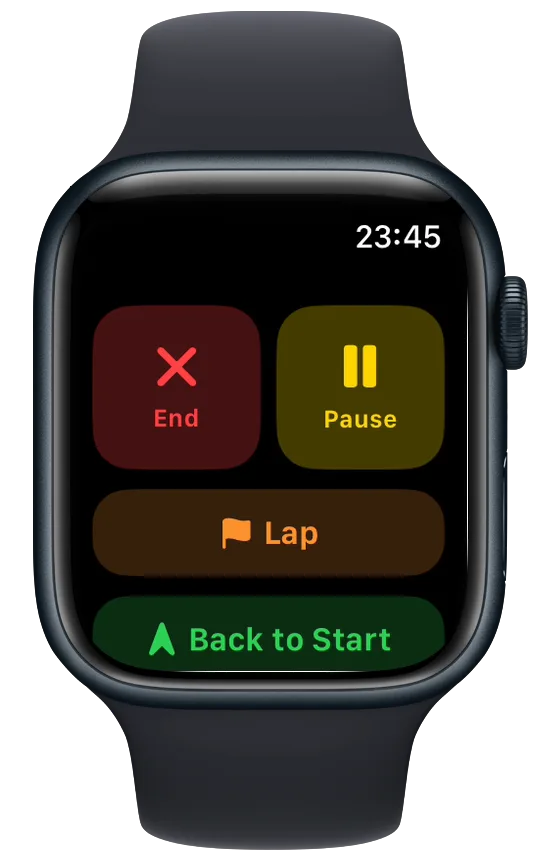
- During a run: swipe to the Controls page, tap Run Settings, and use Auto-pause and Pause after. The change applies straight away and is kept for your next runs.
The iPhone holds the main copy of your settings. The next time you change a setting there, the Watch takes the iPhone's values, auto-pause included.
Conservative or Standard
Conservative, the default, pauses after 7 seconds of confirmed standstill. Standard pauses after 4 seconds. Both use the same checks and only differ in how long the standstill has to last. Standard stops the clock sooner, with a slightly higher chance of a false pause when reception is poor.
How Vanoor decides you have stopped
Every second while you run, Vanoor looks for two signs that agree. The distance counted from your steps has to have stopped growing. A second source has to confirm it: either the step counter says you are standing still, or a reliable GPS reading puts your speed at 0.6 m/s (about 2.2 km/h) or less.
Both have to hold for the whole 7 or 4 seconds. If one second breaks the pattern, the count starts again. Missing or out-of-date sensor data never counts as stopped, so a GPS gap under a bridge can't pause you. Auto-pause also waits 10 seconds after you start or resume before it can pause again.
The run resumes as soon as the step counter sees you moving again, or once GPS shows at least 1.2 m/s for 1.5 seconds. You feel a tap on the wrist at every pause and every resume.
Pause by hand
- On the Controls page, tap Pause. The same button turns into Resume.
- With the Controls page showing, the Double Tap hand gesture presses Pause or Resume on Apple Watch models that support it (watchOS 11 or later).
- Press the side button and the Digital Crown together to pause or resume. On the ready screen before a run, the same press starts the run.
- Auto-pause never resumes a pause you made yourself. Only you can lift it.
- If you switch auto-pause off while it is holding a pause, that pause becomes yours, so you resume it by hand.
- A walk keeps your step distance growing, so a walking break doesn't count as a stop.
Related guides
Picked by shared topics.
Keep the Watch. Upgrade the run.
Vanoor: offline route navigation, race pacing and structured workouts on the Apple Watch you already own.
Get Vanoor on the App Store 7-day free trial · $9.99 once, no subscription · no account