 Vanoor
Guide
Set up your Watch run screens
On this page
During a run your Watch shows three areas side by side, and the middle one is a stack of data pages. You choose which pages go in that stack, and in what order, in the iPhone app.
How a run is laid out on the Watch
Swipe left or right to move between the three areas. Controls is on the left, with End, Pause, Lap and Run Settings. Your data pages are in the centre. Now Playing is on the right, for music or a podcast.
The data pages sit one above the other. Swipe up or down, or turn the Digital Crown, to move through them. Before you start, the run waits on the Controls page; when you tap Start it moves to the first data page.
If you run a planned workout with steps, Vanoor puts a Split Target page at the top of the stack for that run. It shows the step you are on and its target. You can't edit, move or remove it, and it doesn't appear on a free run.
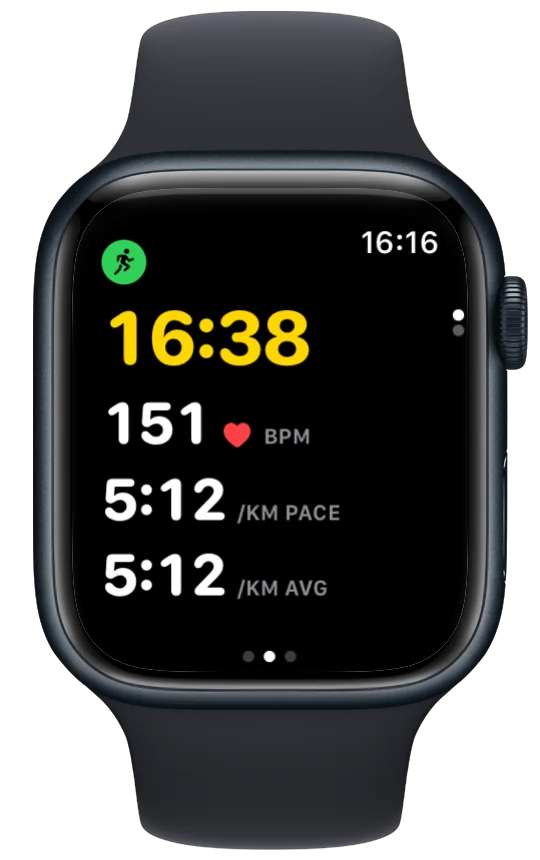
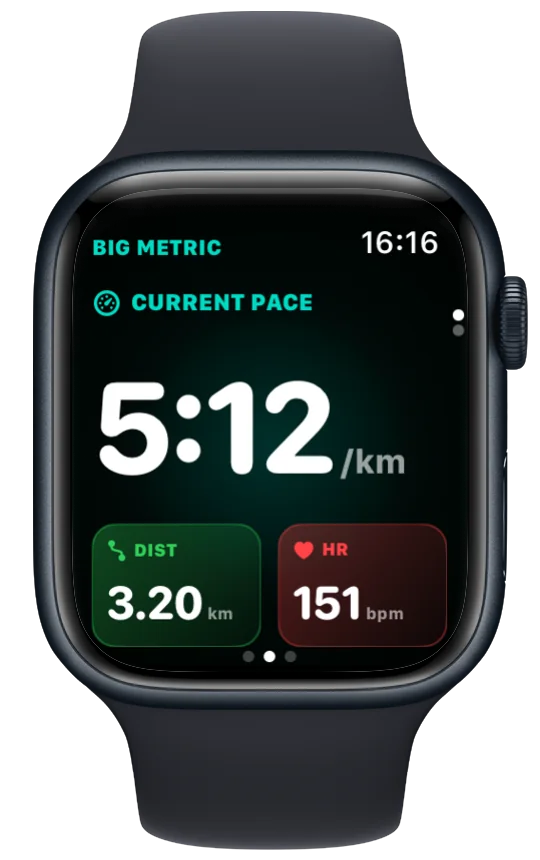
Open the screen builder
- Open Vanoor on your iPhone and tap the gear on Home to open Settings.
- Under Watch Experience, tap Workout screens.
The Watch Screens page lists your pages in the order the Watch shows them. Each row has a small preview of the watch face with its metrics, and the counter at the top shows how many pages are active out of 5.
Add a page
- Tap Add Screen.
- Pick a page type. Heart Rate, Metrics, Elevation, Map and Metronome have fixed layouts and are added as soon as you tap them.
- Classic, Big Metric, Pace and Calories let you choose what they show. Pick a metric for each position and watch the preview change, then tap Add.
Classic has five positions, Pace has four, Big Metric has three (a large one on top and two below) and Calories has two. For each position you can choose elapsed time, distance, current pace, average pace, heart rate, active calories, elevation, route remaining or route progress.
Change, reorder, switch off or delete a page
- Tap a page to open it. You get a larger preview, an Enabled switch and, on the four pages with a choice of metrics, a picker for each position.
- Use the switch on a row to take a page out of your run without deleting it.
- Tap Edit, then drag rows into a new order. The page at the top is the one you see first when the run starts.
- Swipe a row to the left and tap Delete to remove it.
- Reset to Default brings back the standard set: Classic, Elevation, Heart Rate, Metrics and Map.
Each change is saved on the iPhone and sent to your Watch, so you don't need to set anything up on the Watch itself.
- You can have up to 5 active pages. If you add a page when five are already on, it is added switched off, and you need to turn another page off before you can turn it on.
- At least one data page has to stay on. Map and Metronome don't count as data pages, so they can't be your only pages.
- On a free run with no route, the Map page only appears if Map screen on freeruns is on in Settings → Watch Experience. The pace and heart rate panel at the bottom of the map has its own switch there too.
- The Metronome page is in the list but starts switched off.
If a switch won't move
A greyed-out switch means one of the two limits above. Either five pages are already on, or the page is your last data page. Turn a different page off or on first, and the switch works again.
Related guides
Picked by shared topics.


Keep the Watch. Upgrade the run.
Vanoor: offline route navigation, race pacing and structured workouts on the Apple Watch you already own.
Get Vanoor on the App Store 7-day free trial · $9.99 once, no subscription · no account