 Vanoor
Guide
Your runs on iPhone: the Activity tab
On this page
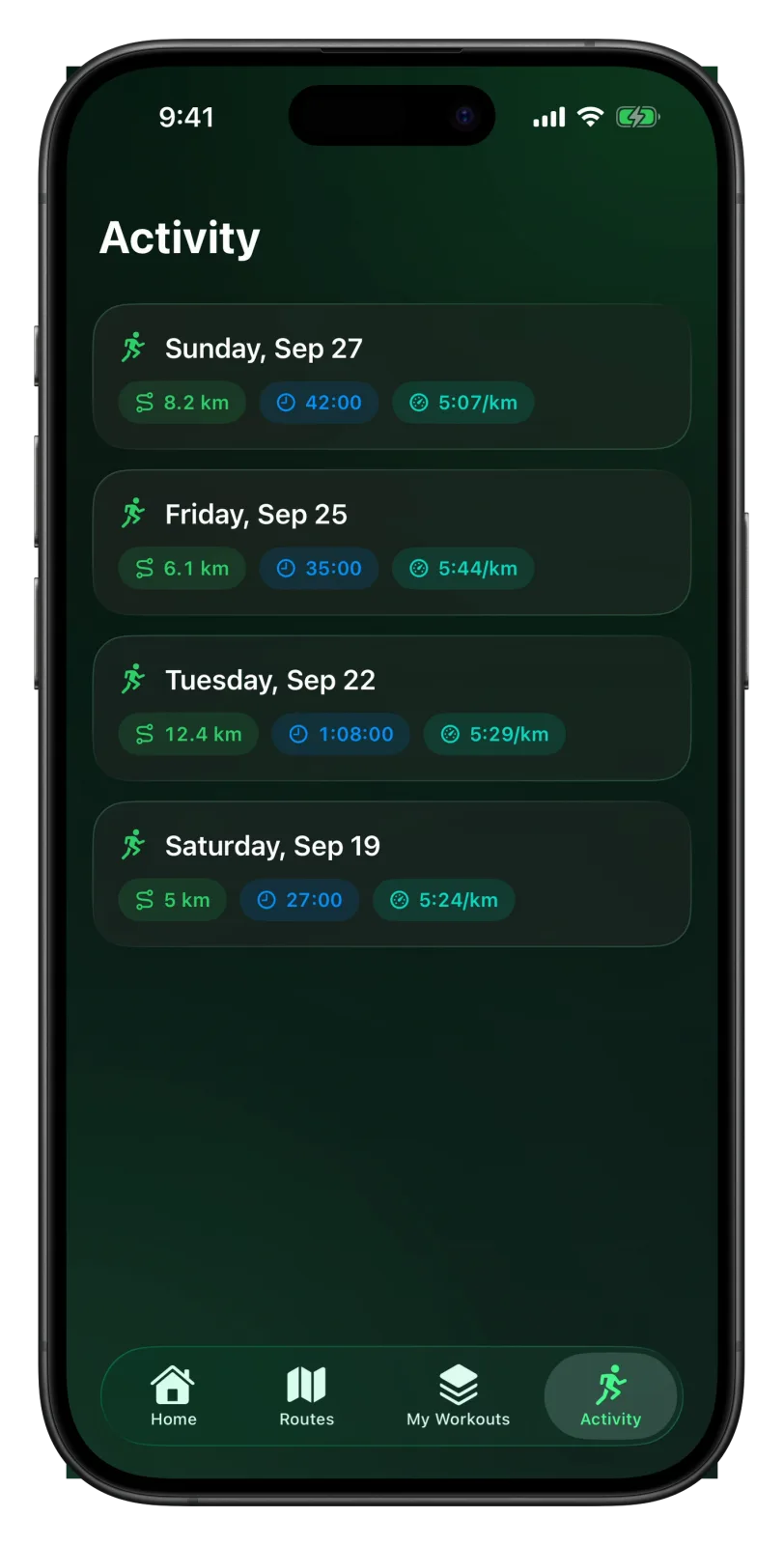
When you save a run on the Watch, it goes to Apple Health and to your iPhone. On the iPhone you find it in the Activity tab, the last tab at the bottom of the screen.
The list
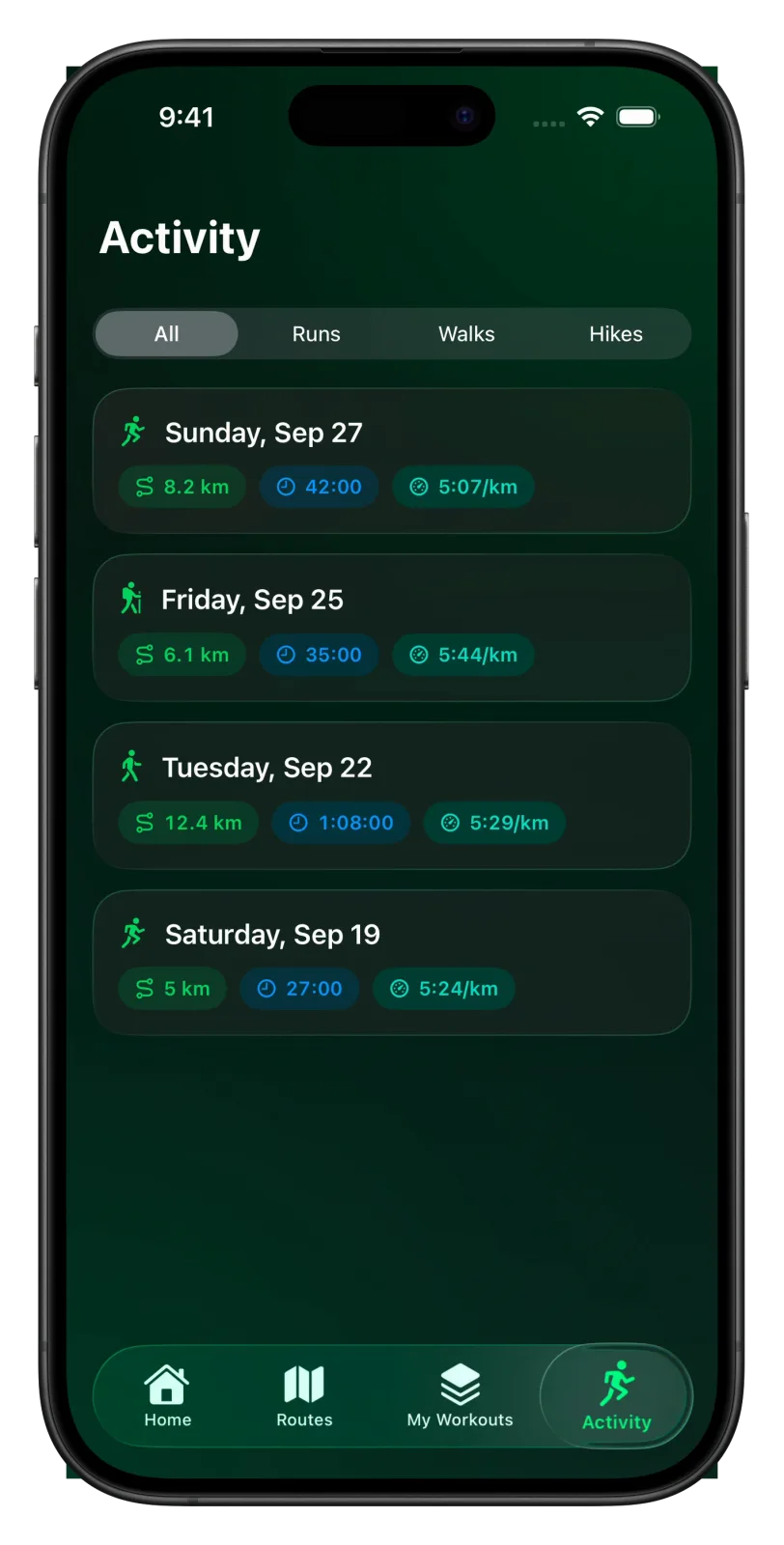
Activity lists your workouts with the newest at the top. Each row shows the day, the distance, the time and the average pace. The icon on the left shows the type: a runner, a walker or a hiker. A run you gave a name, or a planned workout, shows its name above the date.
Once you have more than one type of workout, a filter appears at the top with All, Runs, Walks and Hikes. The walks and hikes guide explains how to record those.
A run's page
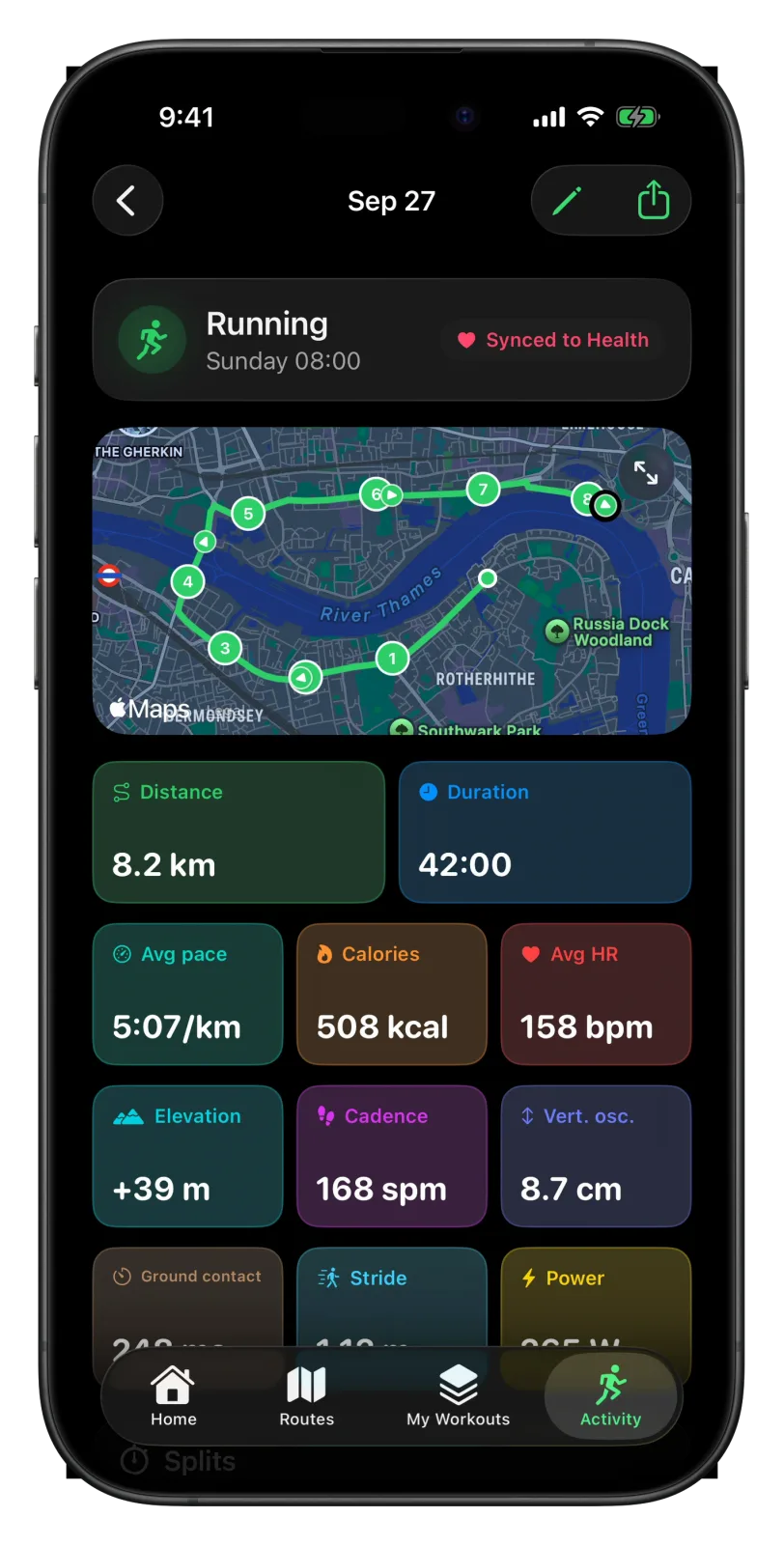
Tap a row to open the run. From top to bottom you get:
- The type and start time, with a Synced to Health tag.
- A map of your route with a marker at every kilometre. Tap the arrows in its corner to open it full screen.
- Tiles for distance, duration, average pace, calories, average heart rate and elevation gain. When the Watch recorded your running form, tiles for cadence, bounce (vertical oscillation), ground contact, stride and power follow.
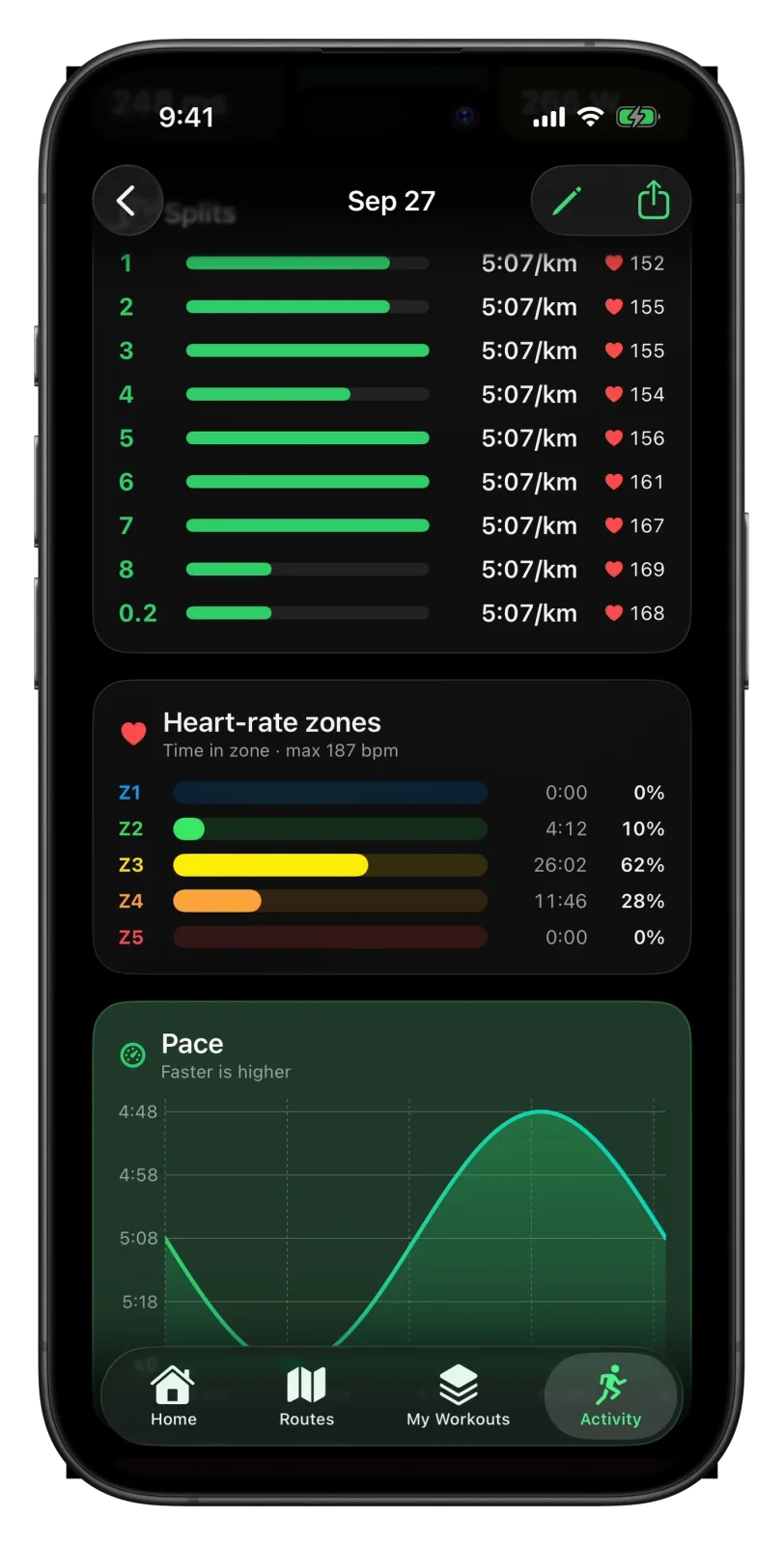
- Splits and laps, then your time in each heart-rate zone.
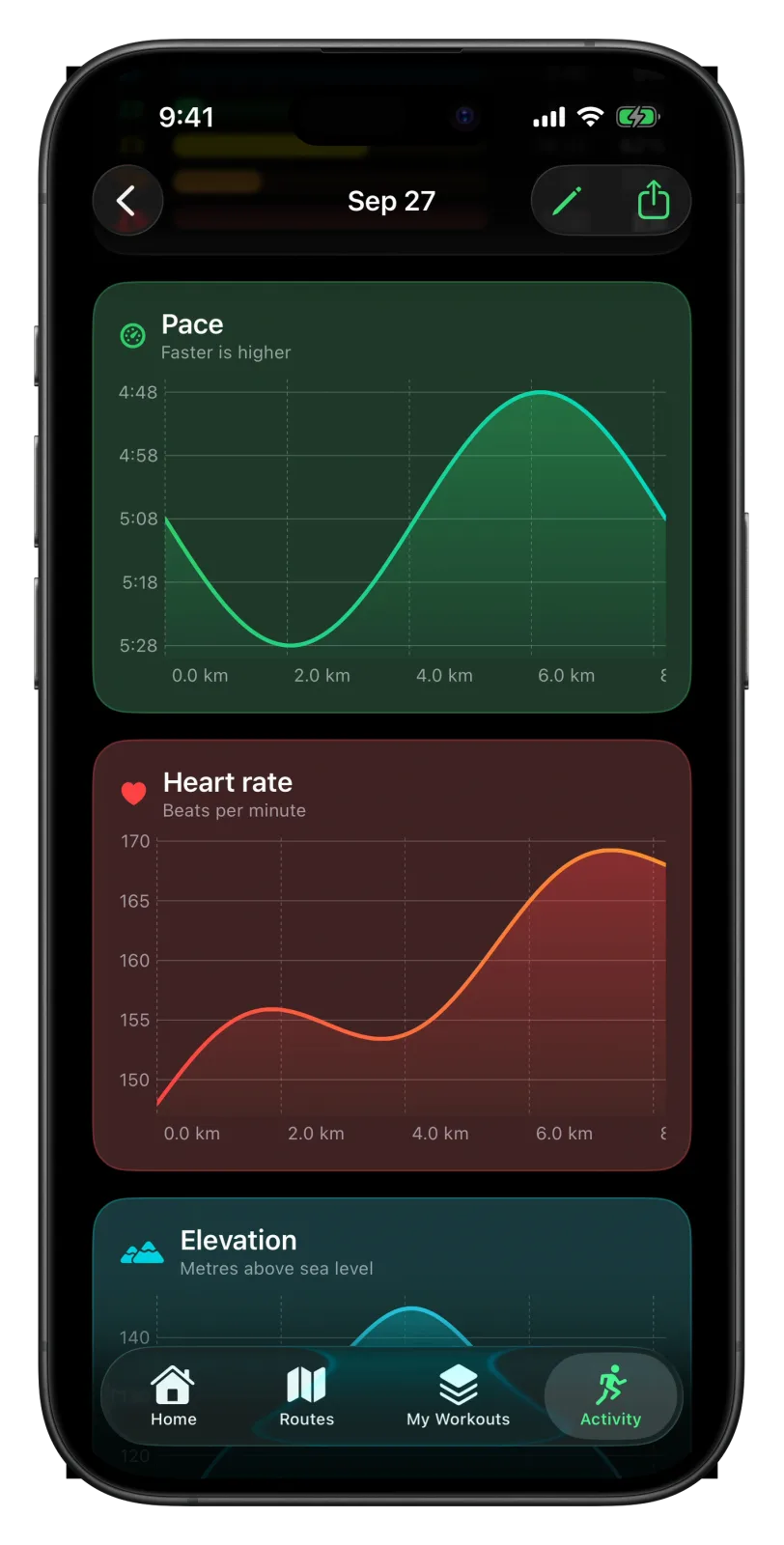
- Charts for pace, heart rate and elevation along the distance, and for your running form when it was recorded.
Laps or splits
Splits are the automatic kilometres, or miles if your units are miles. If you pressed Lap during the run, the card shows your laps instead, with a Laps | Splits switch to flip between the two. Each lap shows its distance, pace and average heart rate. The fastest row is green and has the longest bar. The laps guide explains how laps are counted.
Charts
Each chart runs along the distance of the run. On the pace chart, faster is higher. The heart-rate chart is in beats per minute and the elevation chart in metres above sea level. The heart-rate zones card above them uses the zones from Settings → Profile; the heart-rate zones guide shows how to set them.
Name a run
Tap the pencil at the top right, type a name and tap Save. The name shows in the list and on the run page. Clear removes it. A run that followed a planned workout gets the workout's name by itself, and Strava gets the same name when Vanoor uploads it.
Share a FIT or GPX file
- Open the run.
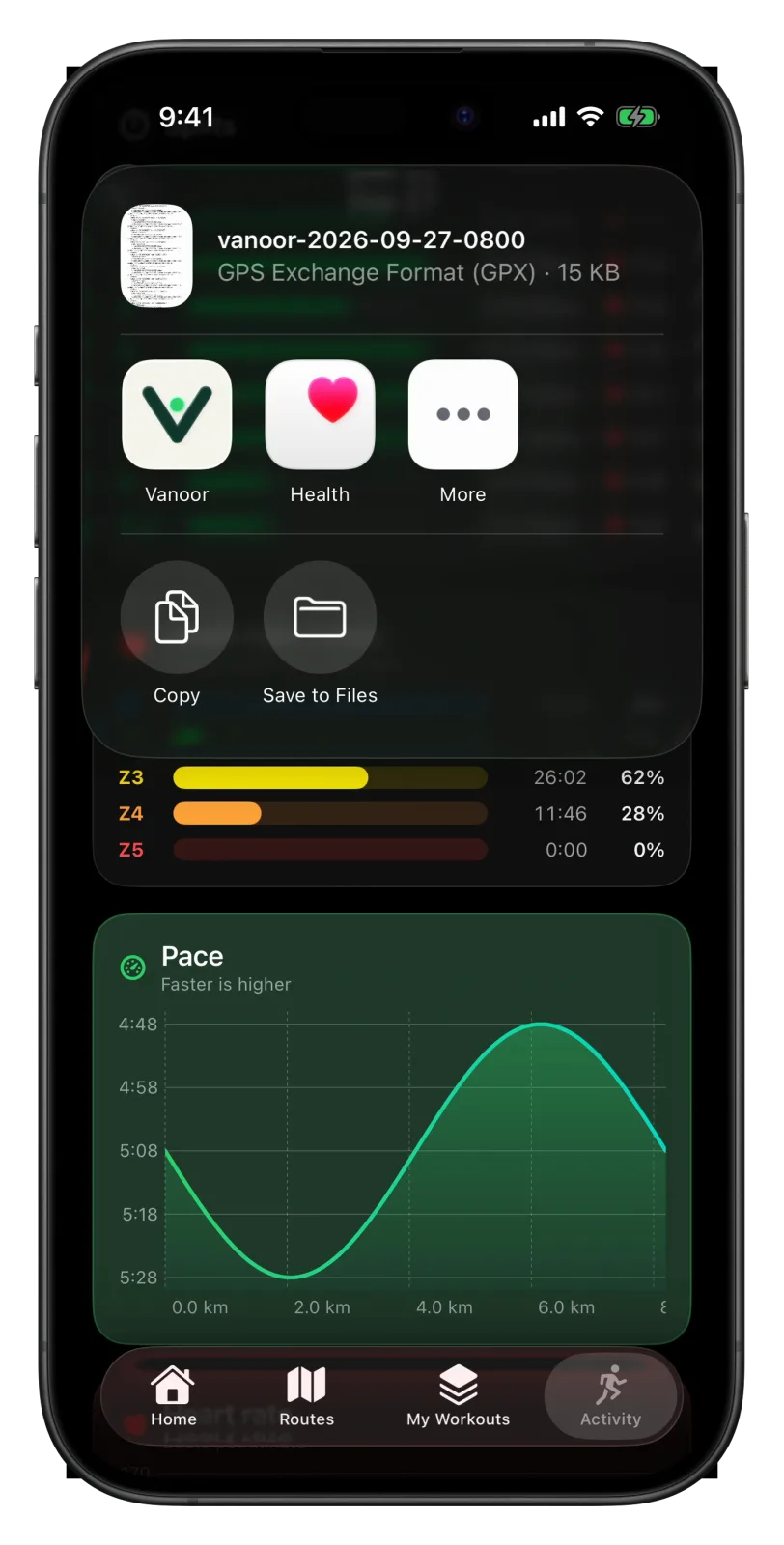
- Tap the share button at the top right.
- Choose Share FIT or Share GPX, then save, AirDrop or send the file.
The FIT file carries the route, heart rate and laps. The GPX file carries the route with elevation, times and heart rate, but no laps. Both open in most training apps.
Strava
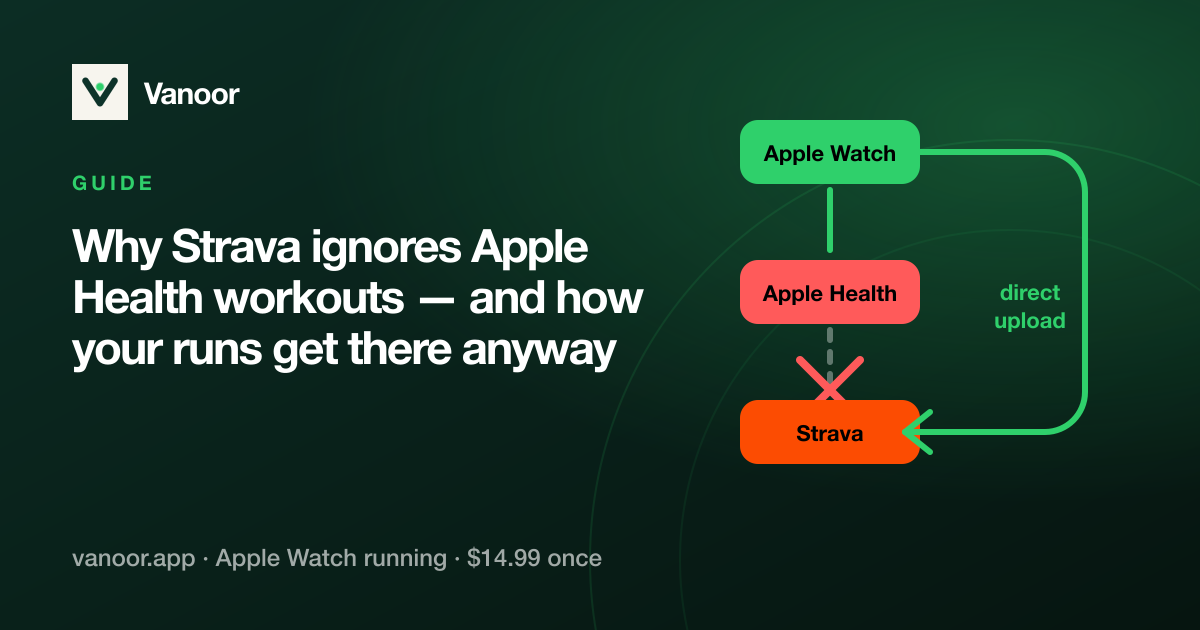
If you have connected Strava, each run uploads as soon as it reaches the iPhone. To see what has gone up, open Settings → Strava → Upload status. A tick means the run is on Strava. An upload button means it isn't yet; tap it to send that run. The Strava and Apple Health guide covers the connection.
Delete a run
Swipe a row to the left and tap Delete. Vanoor asks first. By default the run is only removed from Vanoor and stays in Apple Health. Turn on Also delete from Apple Health to remove it there as well; the button then reads Delete Everywhere.
- Activity only shows workouts you recorded with Vanoor. It doesn't read your other workouts or health data.
- A run appears once the Watch has sent it to the iPhone, so Strava uploads and the Activity tab both wait for that.
- The running form tiles and charts only appear for runs where the Watch recorded them, so walks and hikes don't have them.
- What each running form number means: Apple Watch running metrics explained.
Related guides
Picked by shared topics.
Keep the Watch. Upgrade the run.
Vanoor: offline route navigation, race pacing and structured workouts on the Apple Watch you already own.
Get Vanoor on the App Store 7-day free trial · $14.99 once, no subscription · no account