 Vanoor
Guide
Save runs to Apple Health and upload them to Strava
Every run you save on the Watch goes into Apple Health. Strava doesn't import workouts that other apps write to Health, so Vanoor uploads your runs to Strava directly once you connect your account.
Saving a run to Apple Health
- On the Controls page, tap End.
- Tap Save Run. Discard Run asks you to confirm, and then nothing is saved.
- Rate how hard the run felt from 1 to 10 with the Digital Crown, then accept.
The summary that follows says Saved to Apple Health. The workout in Health includes your route and heart rate. On watchOS 11 or later, the effort you chose is saved with it. A run that covered less than 5 m or lasted under 10 seconds isn't saved; the Watch tells you no movement was detected.
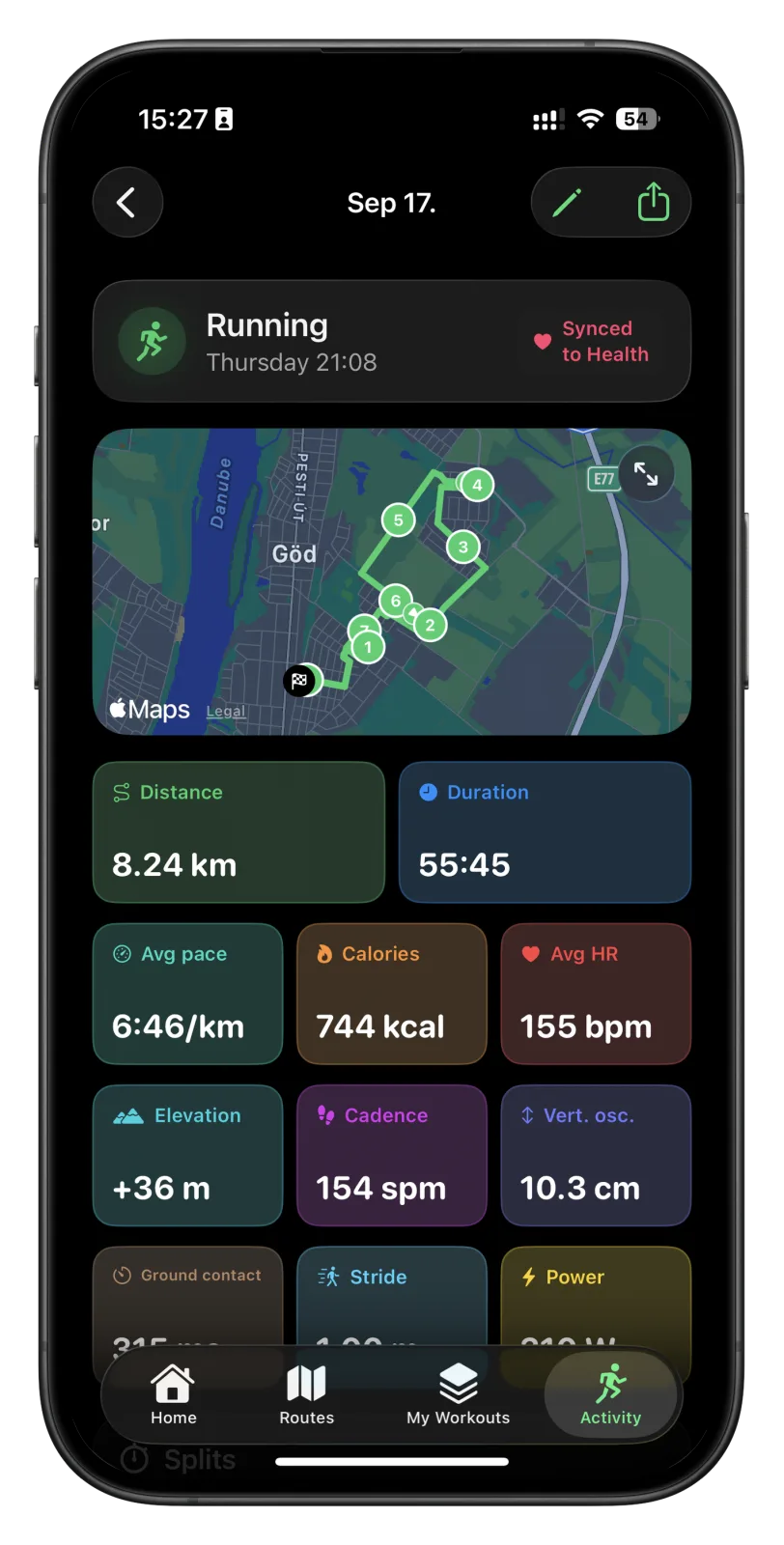
The Watch also sends the run to your iPhone. It appears in the Activity tab, where the run page is marked Synced to Health.
Connect Strava
- Open Vanoor on your iPhone and tap the gear on Home to open Settings.
- Under Strava, tap Connect with Strava.
- If the Strava app is on your phone, it opens so you can approve Vanoor. Otherwise you sign in to Strava on a web page inside Vanoor.
- Approve the request. Vanoor asks to upload activities, plus Strava's basic read access.
Back in Settings, your Strava name shows under Strava, with an Auto-upload runs switch that is on by default.
What goes to Strava
With Auto-upload runs on, each run uploads as soon as it reaches your iPhone from the Watch. Vanoor sends it as a FIT file with your GPS route, heart rate, elevation and laps. A planned workout gets the workout's name on Strava, and its description lists the steps. For a free run, Strava picks the name. The description ends with a short Vanoor credit.
Settings → Strava → Upload status lists your runs. A tick means the run is on Strava. An upload button means it isn't yet, for example a run you recorded before you connected; tap it to send that run. Vanoor remembers what it has sent, and Strava rejects an activity with the same time as one you already have, so the same run can't end up there twice.
Export a FIT or GPX file
- In the Activity tab, open the run.
- Tap the share button at the top right.
- Choose Share FIT or Share GPX, then save, AirDrop or send the file wherever you like.
The FIT file carries the route, heart rate and laps. The GPX file carries the route with elevation, times and heart rate, but no laps. You can upload either one at strava.com/upload.
- Strava uploads happen from the iPhone, so a run goes up once it has arrived there from the Watch.
- If an upload fails, the message under Auto-upload runs says so, and you can send the run again from Upload status.
- Disconnect Strava in Settings stops future uploads. Runs already on Strava stay there.
- Vanoor only reads back the runs it recorded itself, never your other health data.
Related guides
Picked by shared topics.
Keep the Watch. Upgrade the run.
Vanoor: offline route navigation, race pacing and structured workouts on the Apple Watch you already own.
Get Vanoor on the App Store 7-day free trial · $9.99 once, no subscription · no account