 Vanoor
Guide
Mark laps during a run
On this page
Press Lap to cut a run into sections you choose, such as a warm-up or each climb of a hill session. Vanoor's automatic kilometre (or mile) splits keep running alongside your laps.
Mark a lap
You can mark a lap in two ways while the run is running. Neither works while the run is paused.
- On the Controls page, tap the orange Lap button below End and Pause.
- On a data page, double tap the screen with your finger. This doesn't work on the Map page, where a double tap zooms the map, or on the Metronome page, which has its own buttons.
The Double Tap hand gesture, finger and thumb together, is a separate thing. On the Controls page it presses Pause.
Each press closes the lap you are on and starts the next one. You feel a tap, and a card shows for 3 seconds with the lap number, the lap time, its pace and its distance. If the lap covered less than 10 m, the card shows the distance without a pace. A second press within a second of the last one is ignored.
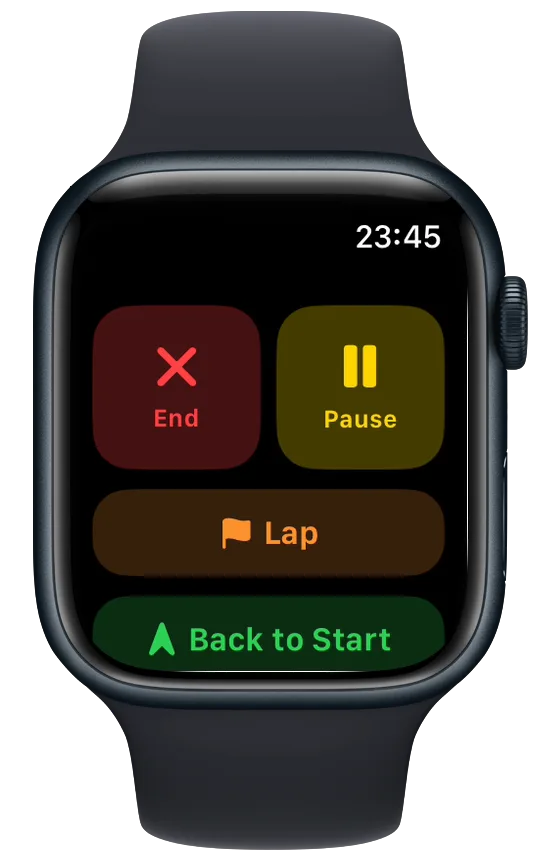
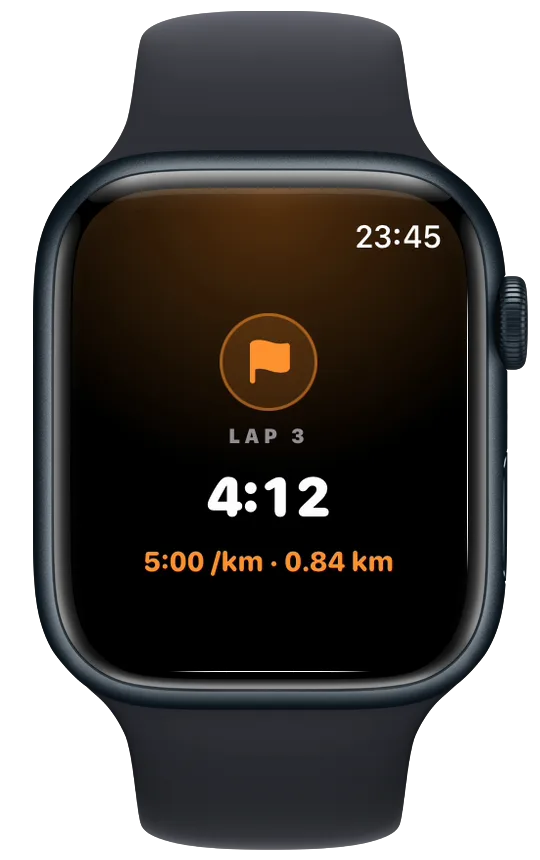
How laps are counted
The run's End closes the last lap. If you press Lap twice and never again, you get 3 laps: from the start to the first press, from the first press to the second, and from the second press to End. If you never press Lap, the run has no laps, only its automatic splits.
Automatic splits keep going
At every kilometre, or every mile if your units are set to miles, the Watch taps your wrist and shows a card with that kilometre's time. This happens on every run whether you use Lap or not. If a kilometre card is on screen when you press Lap, the lap card replaces it.
Laps after the run
- On the Watch, the summary after you save the run has a Laps section with each lap's number, time and pace.
- On iPhone, open the run in Activity. A Laps | Splits switch lets you choose between your laps and the per-kilometre splits. Laps show distance, pace and average heart rate, and the fastest one is in green. The switch only appears when the run has laps.
- The FIT file uses your laps as its laps, both when you share it and when Vanoor uploads the run to Strava. A run without laps gets its per-kilometre (or per-mile) splits as laps instead.
- Each press also adds a lap marker to the workout Vanoor saves in Apple Health.
Lap in a planned workout
Every step in a Vanoor workout ends after a set distance or time, so Lap doesn't move you on to the next step. It records a lap, the same as on a free run.
- The Lap button is hidden while the run is paused and comes back when you resume.
- A press in the first or last half second of the run is left out of the laps on iPhone and in the FIT file, so a stray tap at the start or just before End doesn't leave an empty lap there.
- GPX files don't carry laps. Share the FIT file when you want them.
- Runs recorded before the Lap button existed only have splits.
Related guides
Picked by shared topics.
Keep the Watch. Upgrade the run.
Vanoor: offline route navigation, race pacing and structured workouts on the Apple Watch you already own.
Get Vanoor on the App Store 7-day free trial · $9.99 once, no subscription · no account