 Vanoor
Guide
Configure your Apple Watch running screens: which metrics belong where
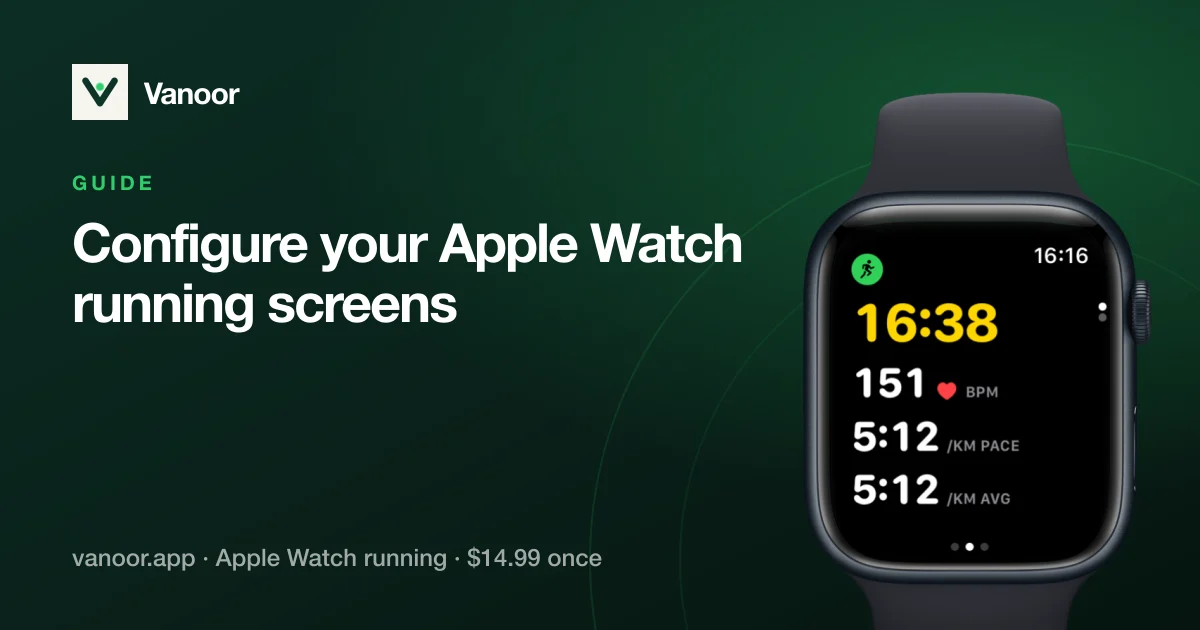
Mid-run you only ever glance at your watch, so what sits on each screen matters. Apple's Workout app lets you reorder metrics on one view. A running watch lets you build pages (an easy-run page, an interval page, a map page) and swipe between them. This guide covers how running screens on Apple Watch work in Vanoor and how to lay them out for the run you are doing.
The pages you can add
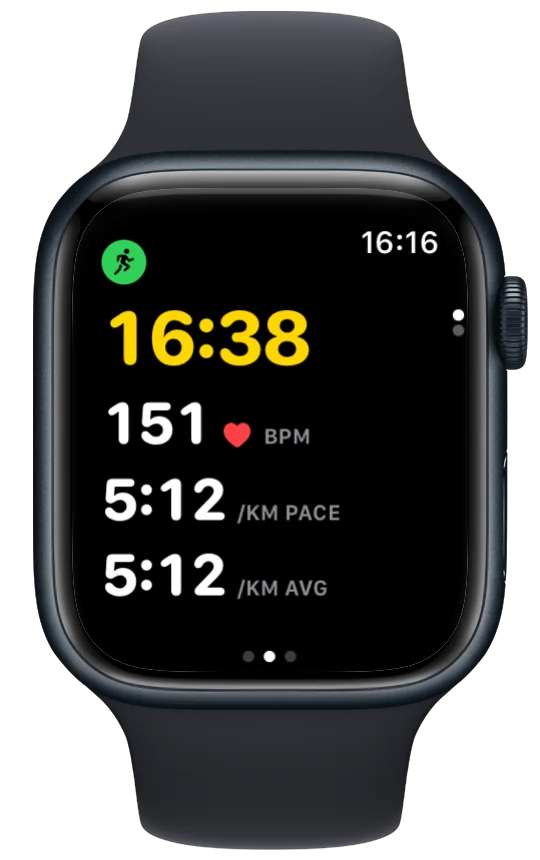
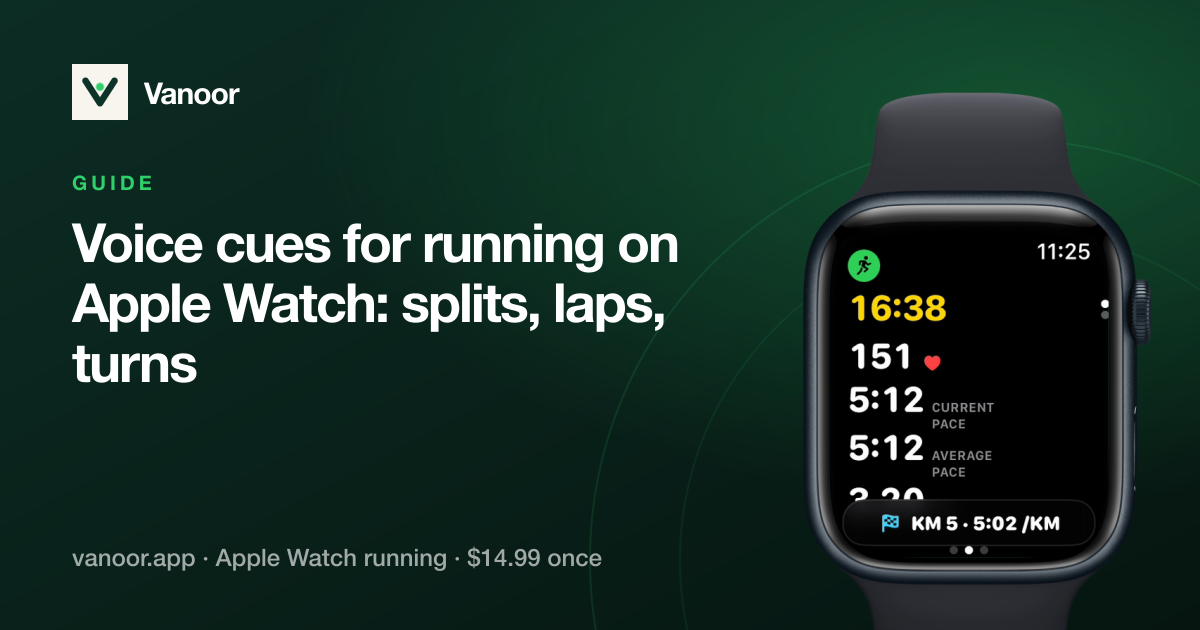
- Classic: up to five metrics, chosen from elapsed time, distance, current pace, average pace, heart rate, calories, elevation, distance remaining on the route, route progress.
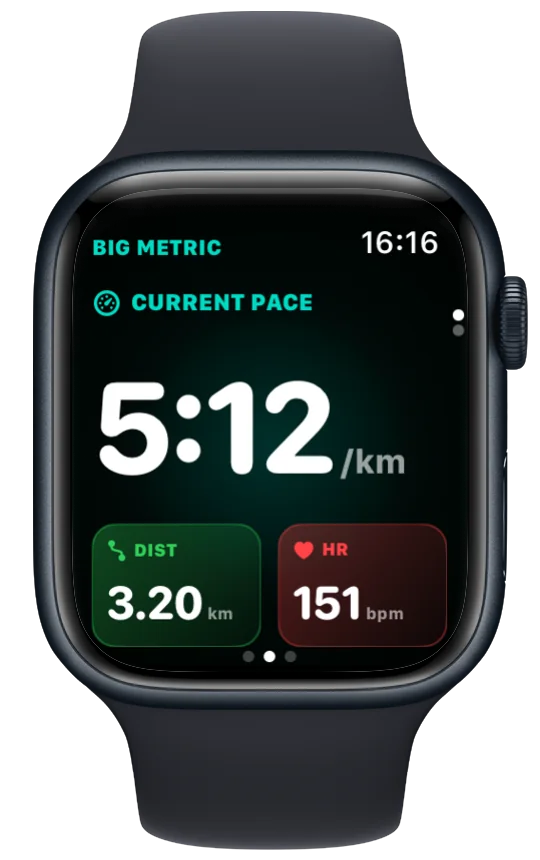
- Big Metric: one large number plus two small ones, for the thing you check every 30 seconds.
- Pace: current and average pace with the split average, for tempo work.
- Heart Rate: the number, the zone and time in zone, coloured by zone.
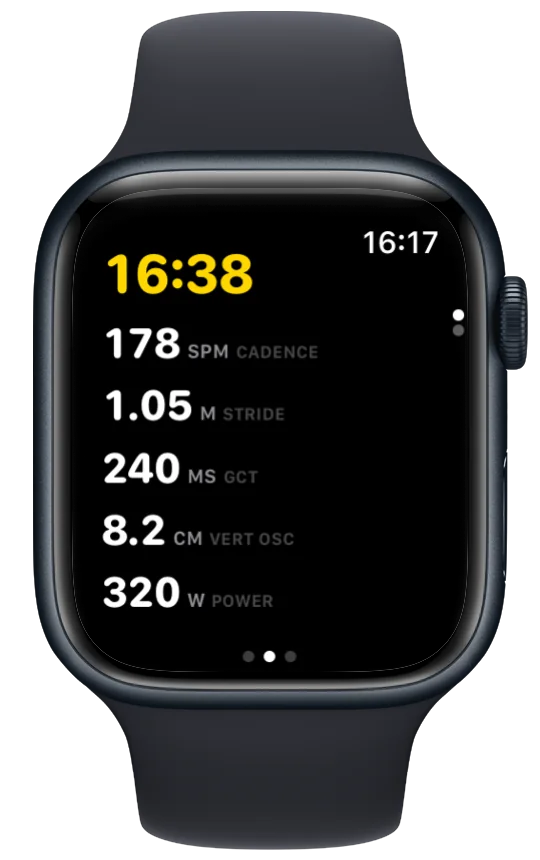
- Metrics: running dynamics (cadence, power, stride length, vertical oscillation, ground contact time).
- Elevation: climb so far and current altitude from the barometer.
- Calories, Map (route, position, offline tiles) and Metronome (a cadence tick for form work).
During a planned workout a Pacer page appears by itself, so you never have to add it. It shows the current step, its target band and your live value.
Three layouts that work
| Run | Page 1 | Page 2 | Page 3 |
|---|---|---|---|
| Easy / long run | Classic: time · distance · avg pace · HR · calories | Heart Rate | Map, if it is a route |
| Intervals / tempo | Pacer (automatic) | Big Metric: current pace | Metrics (cadence) |
| Race | Pacer (automatic) | Classic: distance remaining · elapsed · avg pace · HR | Map |
Rules of thumb
- One page per question. "Am I on pace?" is a page. "How is my heart rate?" is another. Mixing them makes both slower to read.
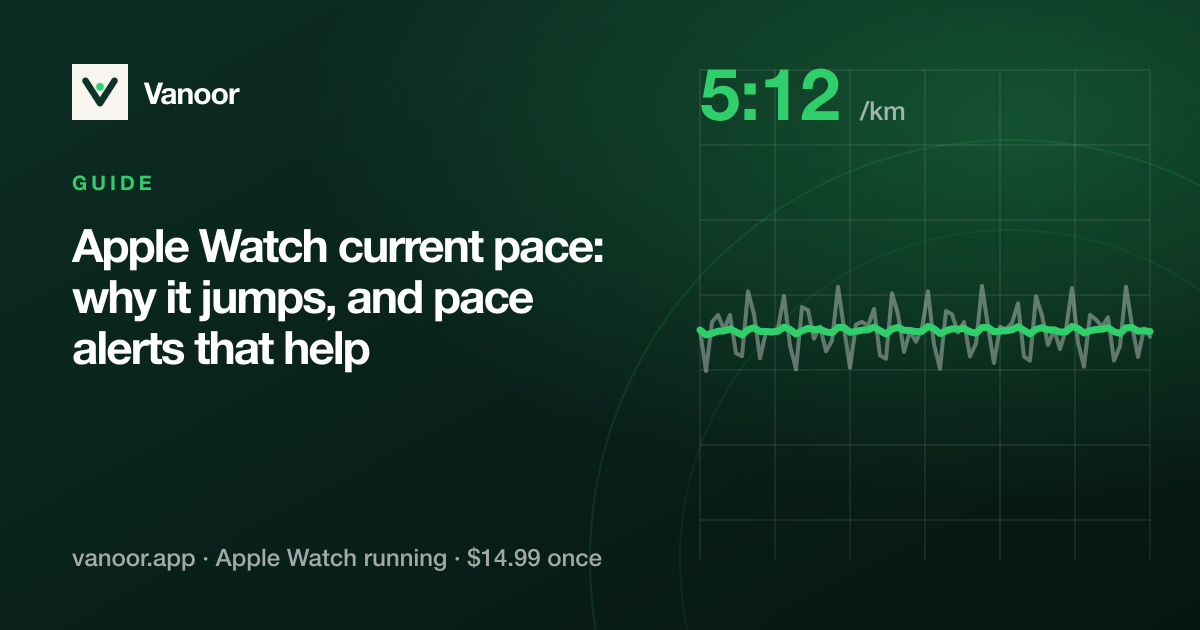
- Current pace is noisy by nature; use it on a Big Metric page where it is smoothed and large, or lean on the split average in Pace.
- Put the map last. You need it at junctions, not every 30 seconds; the off-route buzz will fetch you when it matters.
- Configure on the iPhone, where you have a keyboard and a big screen; the layout syncs to the Watch in seconds.
Pair the layout with the run: interval workouts, race pacing, or a phone-free route.
A cadence field earns a slot during form work (cadence on Apple Watch), and when you run an imported training plan the workout page shows the step you are in (see the AI running plan import).
Last checked 18 September 2026.
Sources
- Apple. Workout views and running metrics on Apple Watch (watchOS User Guide). support.apple.com
- Apple. Change settings in Workout on Apple Watch (watchOS User Guide). support.apple.com
Read 23 September 2026.
Related guides
Picked by shared topics.
Keep the Watch. Upgrade the run.
Vanoor: offline route navigation, race pacing and structured workouts on the Apple Watch you already own.
Get Vanoor on the App Store 7-day free trial · $14.99 once, no subscription · no account