 Vanoor
Guide
Run the perfect race your family can follow live
On this page
On race day two apps can share the work. Vanoor on your Apple Watch runs your pacing plan split by split. Cheerlify on your iPhone puts you on a live map for your family and friends, and plays the voice cheers they send you in your earbuds. This guide shows what to set up in each app during race week, what to carry and how to get through the morning without surprises.
Cheerlify is made by the same developer as Vanoor. It is coming to iPhone and Android and isn't in the app stores yet, so you can join the waitlist on its website. The Cheerlify introduction on the blog covers what it does in more detail.
Who does what
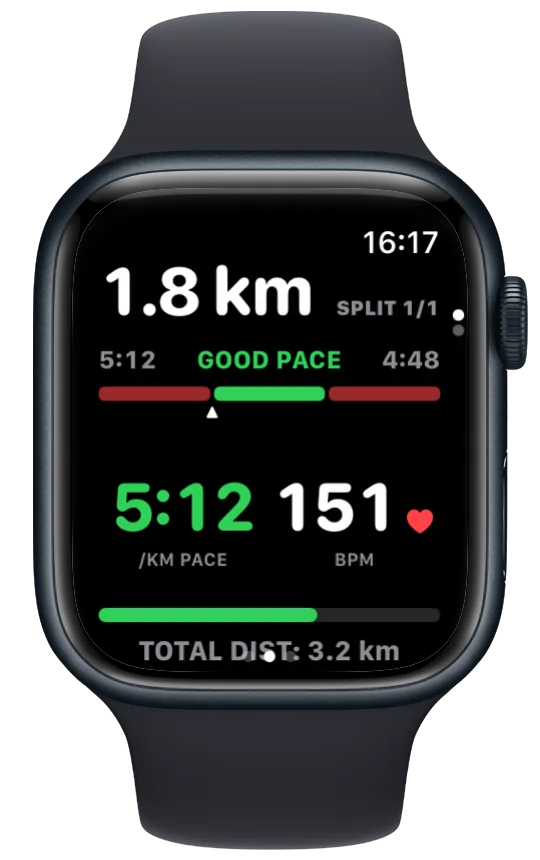
- Vanoor, on the Watch: your goal time turned into splits, each with its own pace band. The Watch shows where you are inside the band and buzzes before each change of pace. The finished run is saved to Apple Health and can go to Strava.
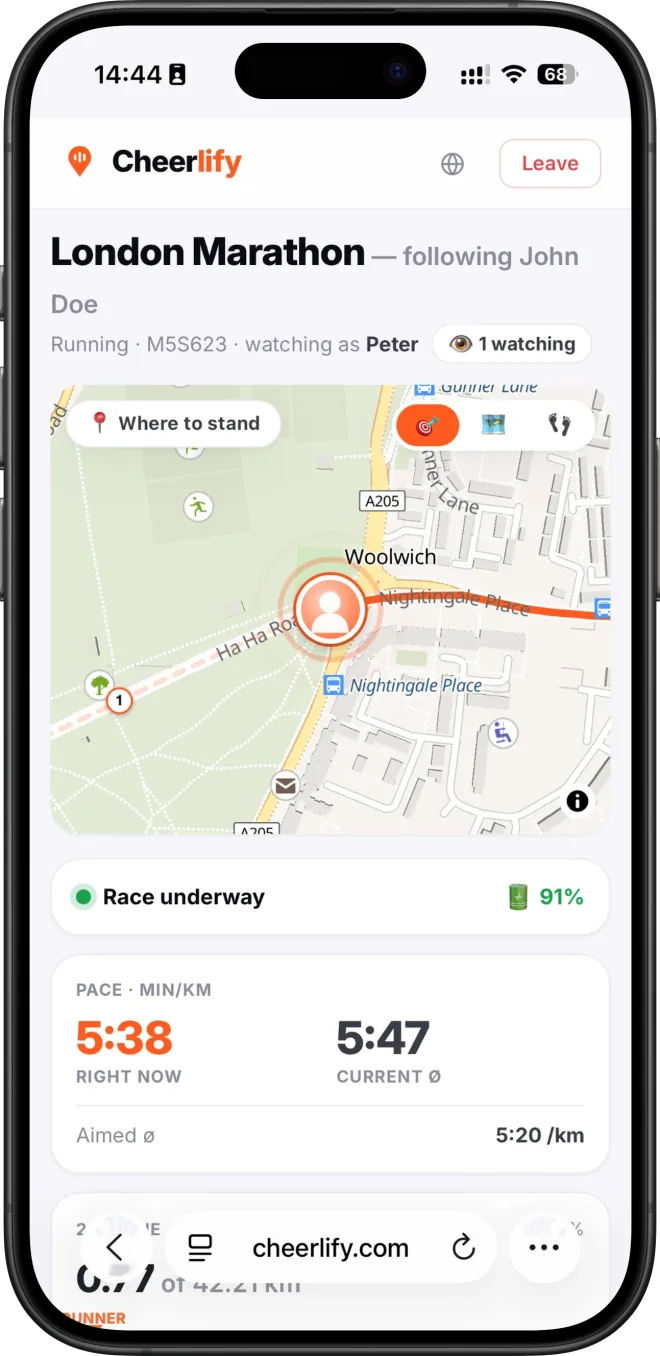
- Cheerlify, on the iPhone: your live position, pace and predicted finish for the people you invite. They open a link in their browser, with no app and no account. The voice cheers they record play in your earbuds while you run.
Vanoor runs on the Watch alone, so on a normal training run you can leave the phone at home. Live tracking is different: Cheerlify runs on the iPhone, so the phone has to come with you for your supporters to see you.
What to carry
- Your Apple Watch, charged, with Vanoor and your race plan on it.
- Your iPhone, charged, with Cheerlify and Vanoor installed. A running belt or an armband keeps it from bouncing.
- AirPods or other headphones, connected to the iPhone. Cheers only reach you through headphones.
Check the race rules before you plan on earbuds. Some races don't allow them, and you still need to hear marshals and traffic.
Race week: set up Vanoor
- Import the race route. Save the course GPX in the Routes tab. The route import guide shows how. Keep the file, because Cheerlify can use the same one.
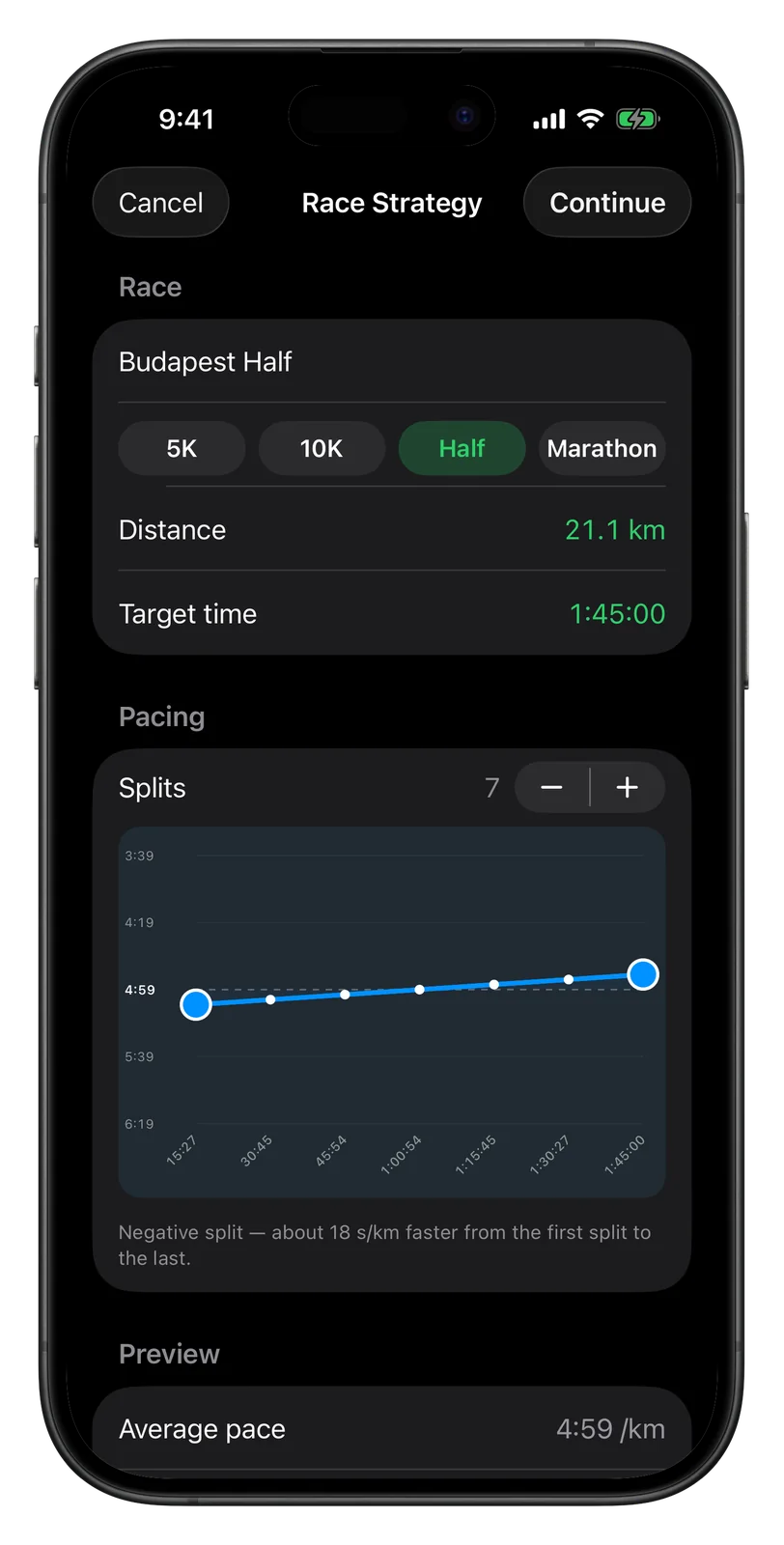
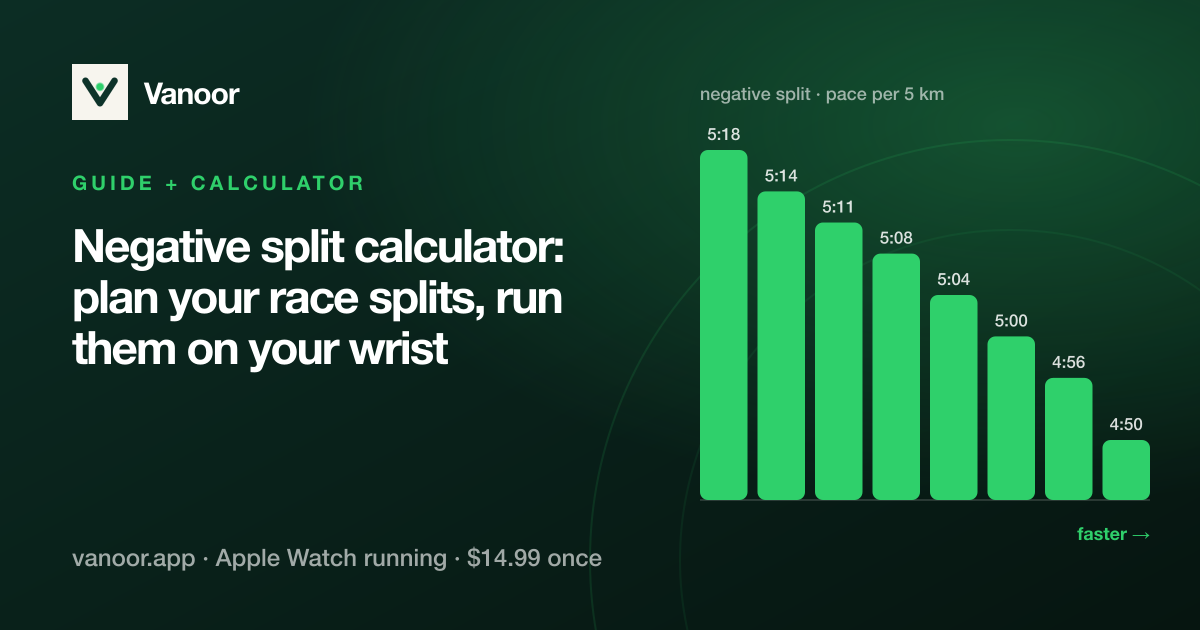
- Build the race plan. In My Workouts, tap + and choose Race Pacing Strategy. Pick the distance, set your goal time and the number of splits, then drag the line for a negative, even or positive split. The race pacing guide explains each step.
- Attach the route and save. Tap Continue. In the workout builder you can rename the splits, add a nutrition cue for your gels and attach the race route. Tap Save, and the plan syncs to your Watch.
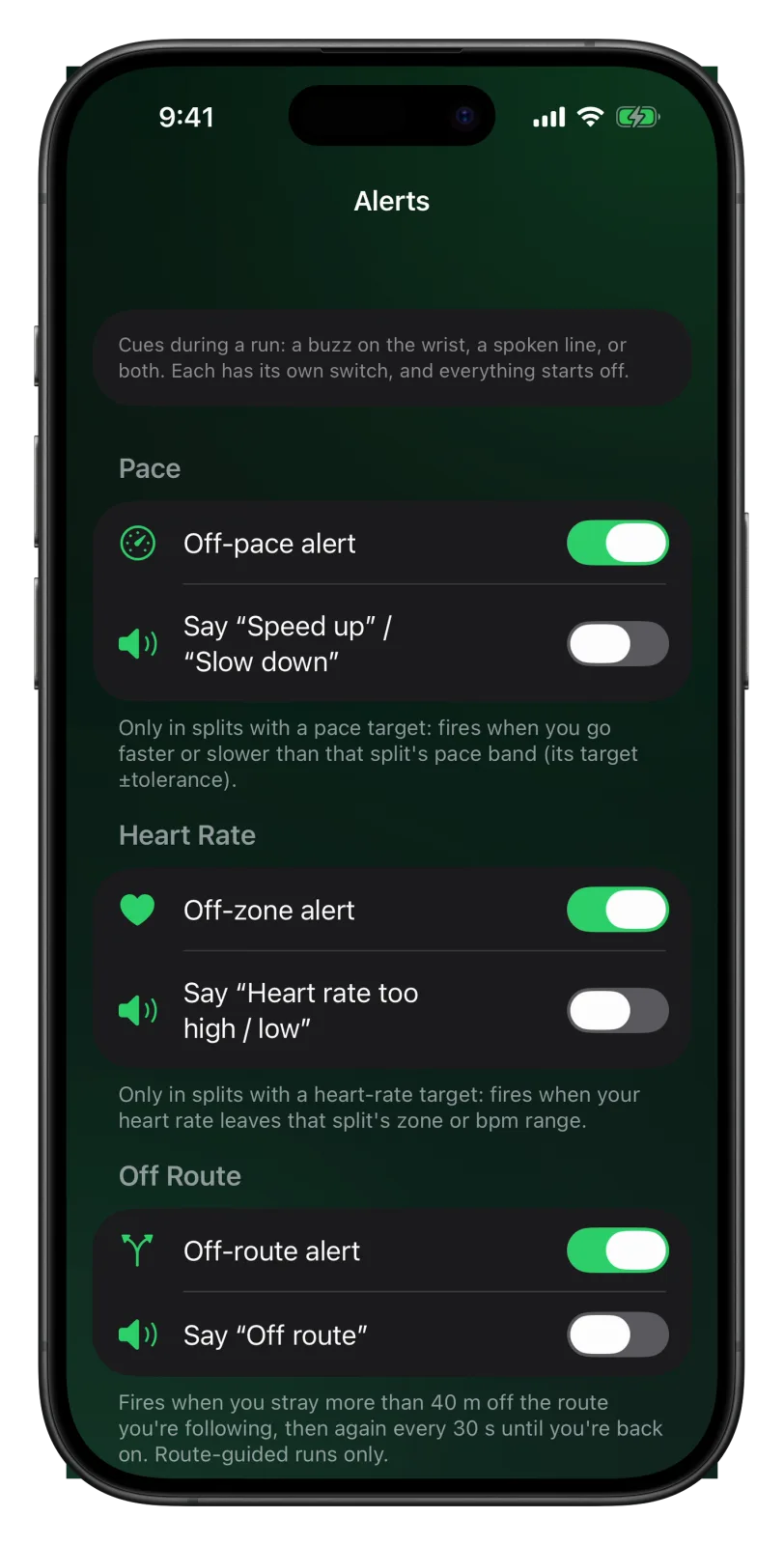
- Choose your alerts. In Settings → Alerts, every alert and spoken cue starts off. For a race, the Off-pace alert and the Split alert are a good pair. Turn on the Say switches below them if you want to hear the lines too. The run alerts guide lists them all.
- Put the map on the Watch. In Settings → Maps & GPS, set Map on Watch to Offline. The iPhone then sends the map along the route to the Watch ahead of time. See Watch map and offline maps.
- Connect Strava in Settings → Strava if you want the race there too. See Apple Health and Strava.
Race week: set up Cheerlify
- Install Cheerlify on your iPhone once it is out, and create your runner account. Your supporters don't need one.
- Create the race. Upload the same GPX you gave Vanoor, or pick the race from Cheerlify's catalog.
- Share the invite link with the people who will follow you. The race is private: only people with your link can open it, and resetting the access code in the race settings locks out every link you shared before.
- Allow location access “Always”, so tracking keeps going with the phone locked in your pocket, and allow notifications.
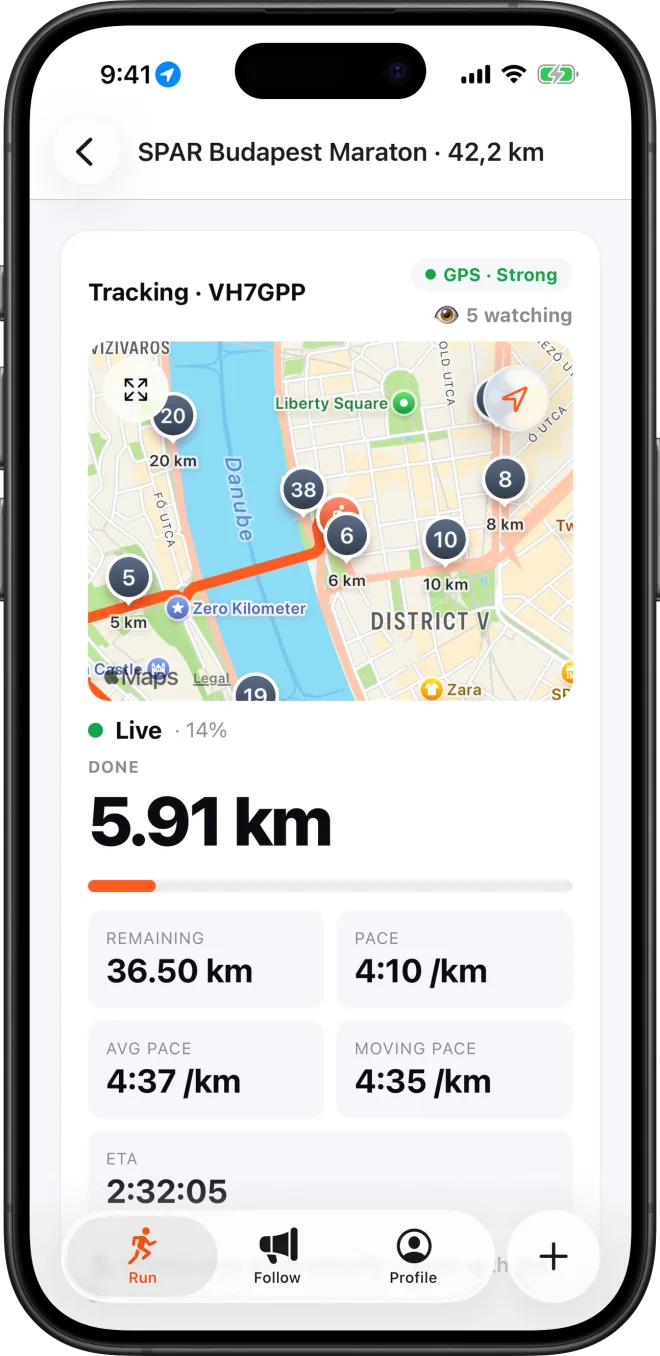
On race day your supporters see your position, pace, splits and predicted finish. They can record a voice cheer or send a clap at any moment, and it plays in your earbuds during the race. With one of Cheerlify's race packs they can also pin a cheer to a kilometre ahead of time, such as halfway or the last hard stretch, and mark the spot where they are standing to see when you should pass it.
Try it once on a training run
A few days before the race, do a short run with the same setup: Watch, iPhone in the belt, AirPods in. Use a free run in Cheerlify for this, not the race itself, because a race that has finished can't be started again. Ask one person to follow you and send a cheer. You find out how the earbuds sit, how loud the cheers are next to your music, and whether the phone stays put.
Race morning
- Charge the Watch, the iPhone and the AirPods to full.
- Connect the AirPods to the iPhone.
- In Cheerlify, open your race and start tracking a few minutes before the gun. Your supporters see you go live.
- On the Watch, open Vanoor and pick your race plan under My Workouts. Start the run when you cross the start line.
- Lock the iPhone and put it away. Both apps keep working with the screen off.
During the race
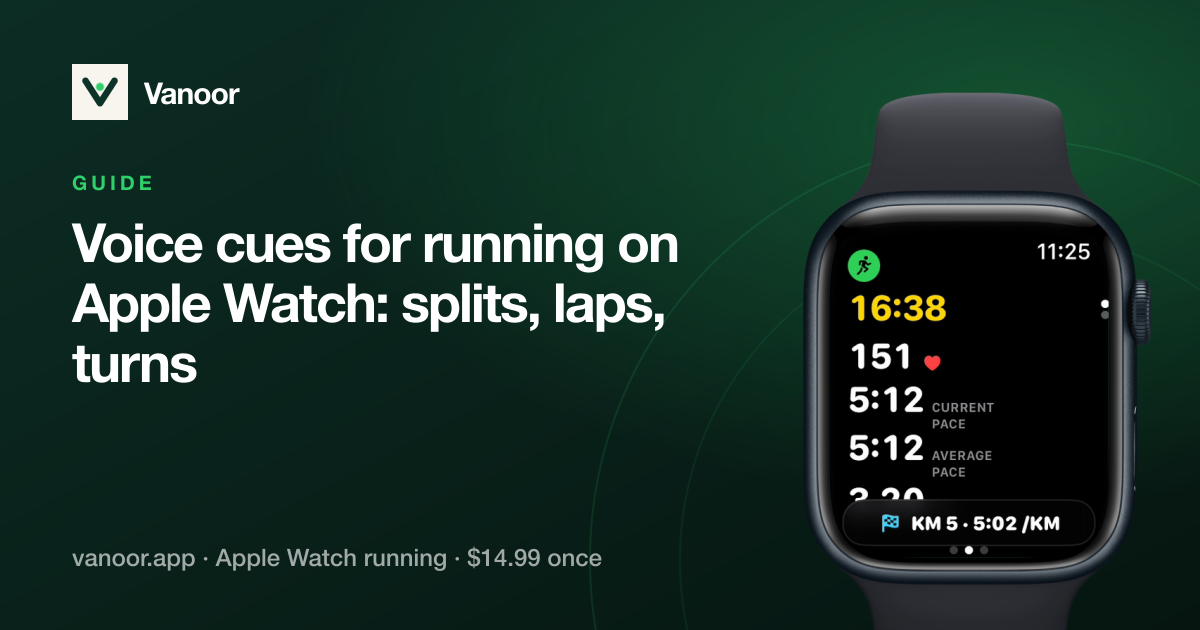
Run from the Watch. The split screen shows the distance left in the current split, its pace band and your live pace, green inside the band and red outside it. Before each new split an UP NEXT card shows the new band, with a buzz, so the change of pace doesn't catch you out.
Cheerlify plays your supporters' cheers in your earbuds, and your music gets quieter while one plays. Vanoor can also speak its cues if you switched them on: the kilometre, the next split, “Speed up” or “Slow down”. They come from the Watch, through headphones connected to the Watch or its speaker. If that is too much talk for you, keep Vanoor's buzzes and turn off some of its Say switches before the race, or turn on Mute voice in Controls → Run Settings on the Watch for this run only.
After the finish
- On the Watch, tap End on the Controls page, then Save Run. The race goes to Apple Health, and to Strava if you connected it.
- In Cheerlify, finish the race. Everyone who followed you can open the recap page, with your route, your splits and every cheer you got.
Battery tips
- Watch: run on a data page and swipe to the map only when you need it. With the map set to Offline, the Watch has everything before the start and downloads nothing during the race. The battery guide for long runs has more.
- iPhone: Cheerlify measured 0.6 to 0.8 % of battery per kilometre on an iPhone 17 with the screen locked, so a marathon takes roughly a quarter to a third of a full charge. Streaming music uses extra, so download your playlist before the race. Cheerlify also has a Battery saver setting that lowers the GPS detail once the battery runs low.
- AirPods: charge them the night before and keep the case in your bag at the start area until the last minute.
- Vanoor never needs the iPhone during a run. If the phone runs flat, the Watch keeps pacing you, and the voice moves to AirPods connected to the Watch or to the Watch speaker.
- Cheerlify has no Apple Watch app. The live tracking comes from the phone's GPS, and your pacing from Vanoor on the Watch.
- Live tracking in Cheerlify is free for a small group of followers, and paid packs add more cheers and viewers. Details are on cheerlify.com.
Related guides
Picked by shared topics.
Keep the Watch. Upgrade the run.
Vanoor: offline route navigation, race pacing and structured workouts on the Apple Watch you already own.
Get Vanoor on the App Store 7-day free trial · $14.99 once, no subscription · no account