 Vanoor
Guide
Plan your race pacing in Vanoor
On this page
The race strategy builder turns a distance and a goal time into a workout with a target pace for every split. You decide how the pace changes over the race, and the total always adds up to your goal time. Which shape suits which race is covered in negative split vs. positive split, and the marathon in marathon pacing on Apple Watch.
Step 1: Open the builder
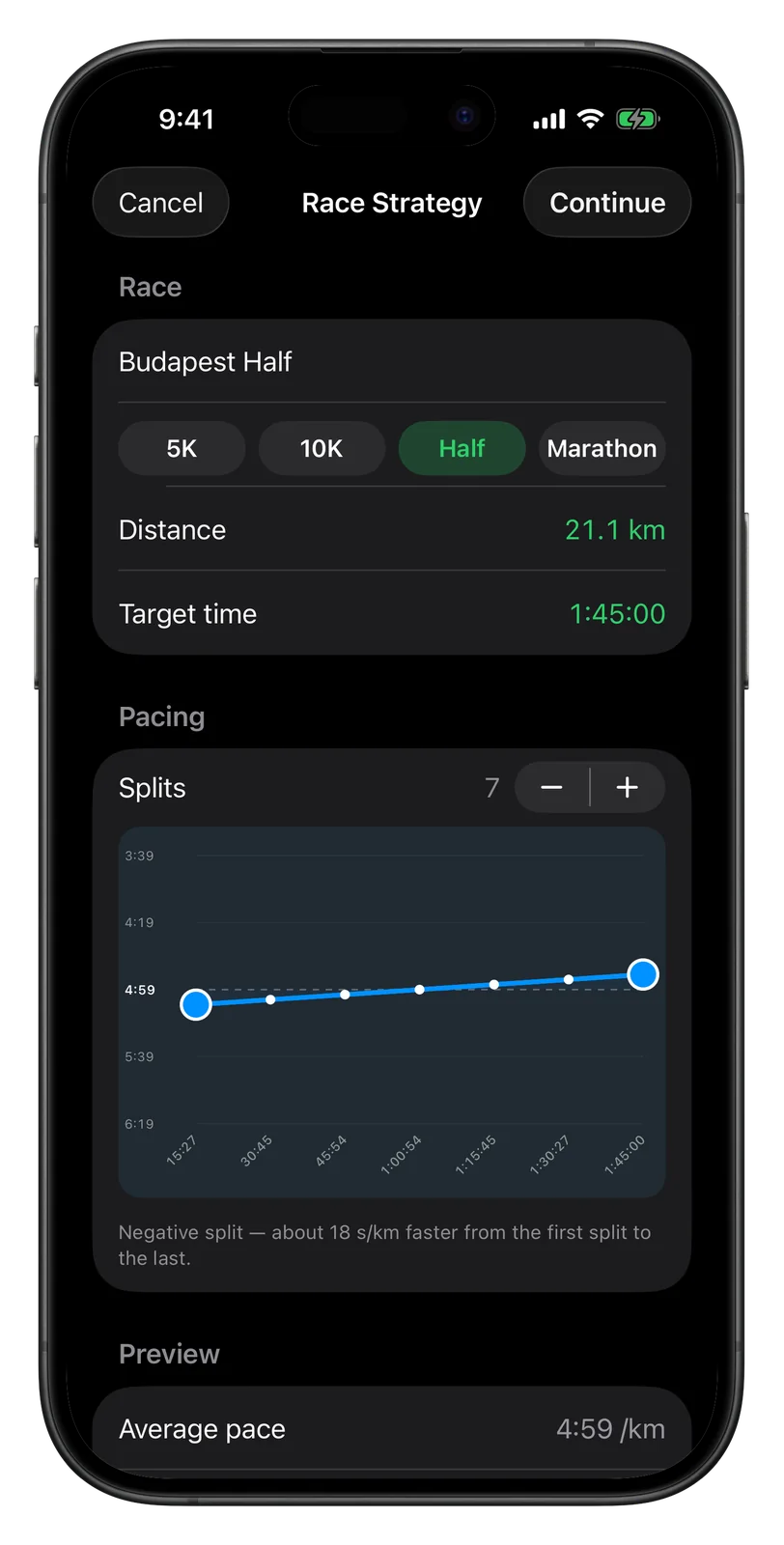
In My Workouts, tap + and choose Race Pacing Strategy. The Race Strategy sheet opens on a 10K in 45:00 over 6 splits with a gentle negative split, ready for you to change.
Step 2: Set the distance and goal time
Tap 5K, 10K, Half or Marathon. For any other distance, tap Distance and set it on the wheel. Tap Target time and set your goal. The name at the top is optional. Without one, the workout is named after the distance and the shape, such as "10 km Negative Split".
Step 3: Choose the number of splits
Under Pacing, the Splits stepper goes from 2 to 12. The race is divided into that many equal parts, so a half marathon in 7 splits gives parts of about 3 km. More splits make a smoother change of pace; fewer are easier to keep in your head.
Step 4: Drag the curve
The chart shows pace up the side, with faster paces higher, and your average pace as a dashed line. Drag either end of the line up or down. The other end moves the opposite way, so the average stays on your goal.
- For a negative split, pull the start down and the finish rises: you start slower and finish faster. The chart turns blue.
- For a positive split, do the opposite. The chart turns red.
- Level the line for an even pace. The chart turns grey.
You feel a small tick in your hand as you drag. The times along the bottom are your elapsed time at the end of each split, and the last one is always your goal time. A line under the chart names the shape and how far apart the first and last splits are, in seconds per kilometre or per mile. The Preview section below lists the average pace, the first split's pace and the final split's pace.
Step 5: Continue and save
Tap Continue. The plan opens in the workout builder as ordinary splits named Split 1, Split 2 and so on, each with its own pace target. Here you can rename splits, add a nutrition cue or attach the race route. Tap Save and the plan syncs to your Watch.
You can also shape the same plan in the calculator on the negative split guide and tap Send to Vanoor on an iPhone that has the app. The plan opens in Vanoor's import sheet, and the checkmark saves it.
What the Watch shows on race day
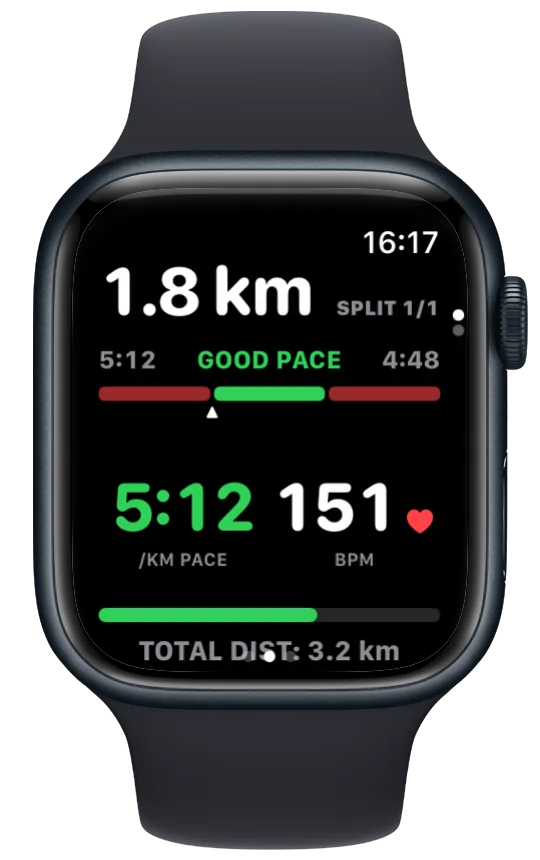
On the Watch, pick the race plan under My Workouts. The run opens on the split screen:
- the distance left in the split you are running, and which split it is, such as SPLIT 2/7;
- the band for that split, its slow and fast edges on either side, with GOOD PACE, SPEED UP or SLOW DOWN between them;
- your live pace, green inside the band and red outside it, and the total distance at the bottom.
Before each new split an UP NEXT card shows its band and length, with a buzz. Near the end of every split the Watch taps a countdown on your wrist, so the change of pace does not surprise you. After the last split it shows WORKOUT COMPLETE and keeps recording until you end the run.
Related guides
Picked by shared topics.


Keep the Watch. Upgrade the run.
Vanoor: offline route navigation, race pacing and structured workouts on the Apple Watch you already own.
Get Vanoor on the App Store 7-day free trial · $9.99 once, no subscription · no account