 Vanoor
Guide
Build an interval workout in Vanoor
On this page
You build workouts on your iPhone in My Workouts. Each one goes to your Apple Watch when you save it, and the Watch runs it split by split with the target on screen.
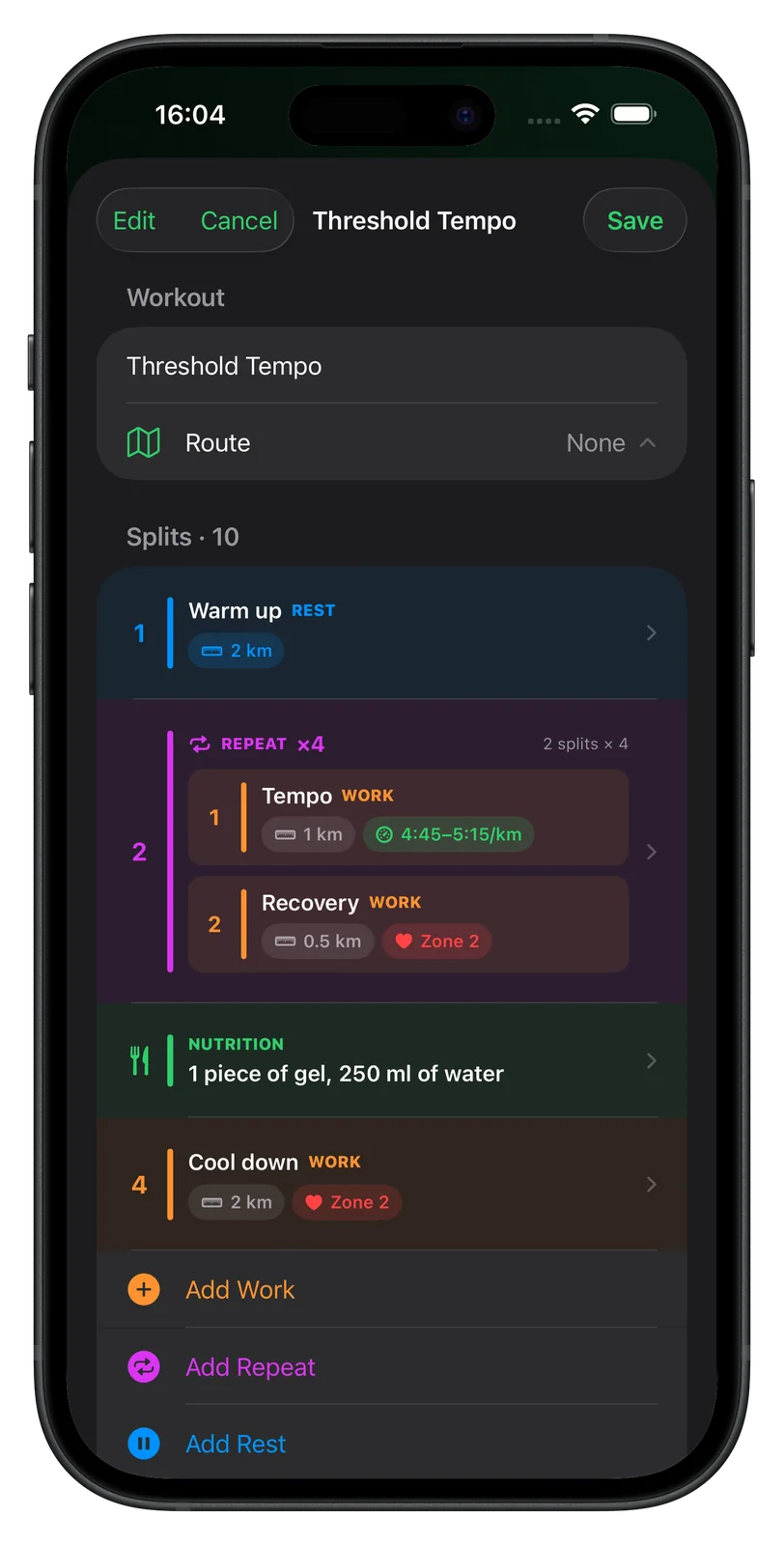
Step 1: Start a workout
Open My Workouts, tap + and choose Build from Scratch. The new workout starts with a warm-up and a run split. Type a name at the top. The Folder field is optional, and Route attaches a route you have imported in the Routes tab.
Step 2: Add splits
Add Work adds a split with a pace target. Add Rest adds a recovery split with no target, marked REST in blue. Tap any split, choose Distance or Time under Length, then set the value on the wheel.
Step 3: Set a target
A work split has three target types at the top of its Target section:
- Pace: the Watch judges you against a band 15 seconds per kilometre either side of the pace you set, and the split row shows it, for example 4:45 to 5:15/km. Switch on Conversational pace to run by feel; the Watch then shows your totals, current pace and heart rate with no band.
- HR Zone: tap one of Z1 to Z5.
- HR Range: set a lowest and a highest heart rate.
Step 4: Add a repeat block
Add Repeat adds a block of 4 × (400 m hard, 200 m easy). Tap it to change it: the stepper sets how many times it runs, from 1 to 30, and Add Work, Add Rest and Import Root Split fill it. Swipe right on a split in the block to duplicate it or Move Out of the block.
Step 5: Add nutrition cues
Add Nutrition adds a green row. Tap it and give each item a name, such as gel or water, and an amount in ml, g, pieces or sips. Under When, In sequence fires when the split above it ends. At time and At distance fire at that point in the run, whichever split is running, and show as a green pin beside the split they should land in.
Step 6: Reorder and save
Tap Edit and drag rows into a new order. Swipe right on a row to duplicate it and left to delete it. Save syncs the workout to your Watch once it has a name and at least one split.
Folders and order
In the My Workouts list, + then New Folder makes a folder. Long-press a workout card and drag it onto a folder, or up and down to reorder. Swipe left on a folder for Ungroup, which keeps its workouts, or Delete, which removes the folder and its workouts. The Watch keeps the same order.
What the Watch shows
On the Watch, pick the workout under My Workouts. The run opens on the split screen.
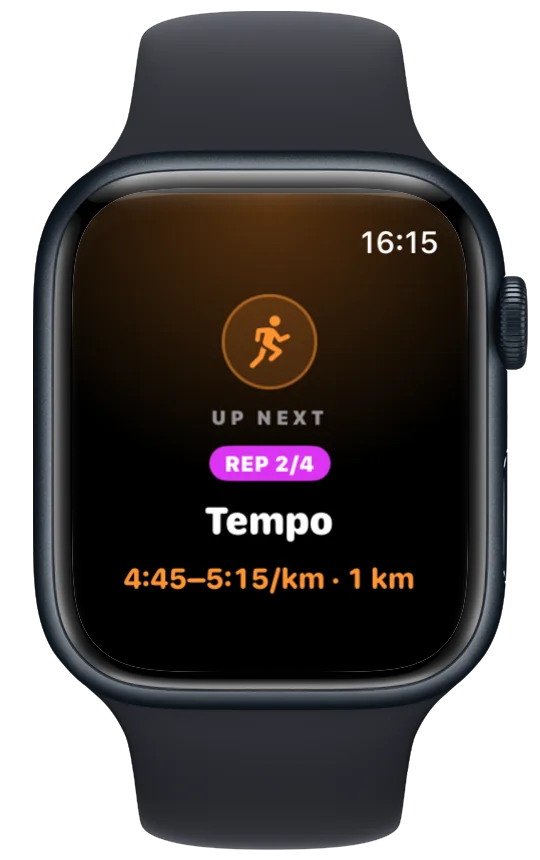
- Before each split, a full-screen card and a buzz (FIRST SPLIT, then UP NEXT) with its name, target and length, plus the rep inside a repeat, such as REP 2/4.
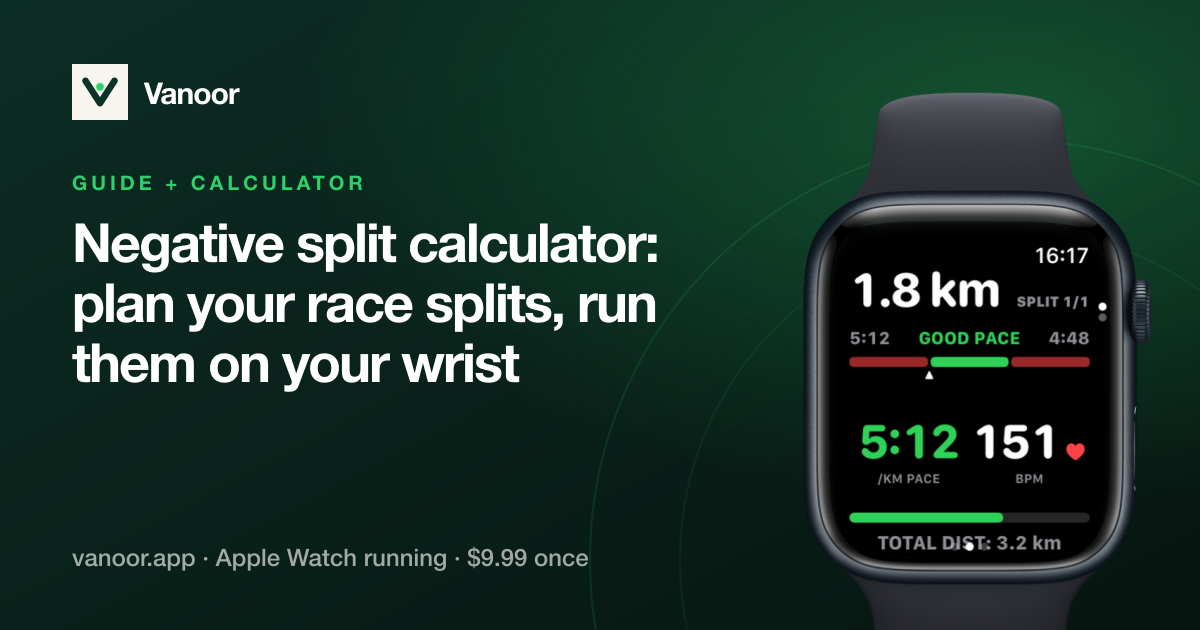
- During a work split, the distance or time left and your live pace or heart rate on a red, green and red bar, labelled GOOD PACE, SPEED UP or SLOW DOWN, or IN ZONE, TOO LOW or TOO HIGH for heart rate.
- During a rest, a countdown ring or bar with the next split underneath.
- One firm tap as the last 100 m or 15 seconds of a split begin, then bursts every second through the last 10 seconds, growing from one tap to three.
- After the last split, WORKOUT COMPLETE. The run keeps recording until you end it.
If something goes wrong
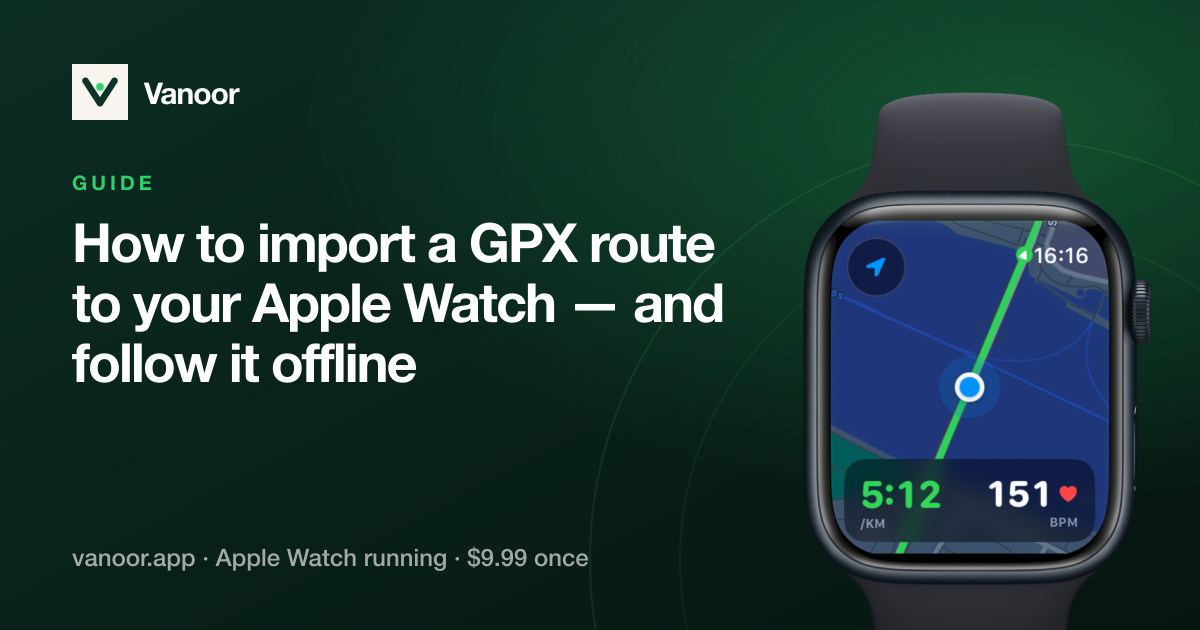
If a workout is missing on the Watch, open Vanoor on both devices; the iPhone resends every workout whenever the Watch becomes reachable. If saving a workout with a route shows "Apple Watch is not available", check that the Watch is paired, nearby and has Vanoor installed.
Related guides
Picked by shared topics.

Keep the Watch. Upgrade the run.
Vanoor: offline route navigation, race pacing and structured workouts on the Apple Watch you already own.
Get Vanoor on the App Store 7-day free trial · $9.99 once, no subscription · no account