 Vanoor
Guide
Import an AI training plan into Vanoor
On this page
Vanoor has no AI inside it. You ask your own assistant for the plan, it writes a .vanoor file, and Vanoor turns that file into workouts in My Workouts. For prompts that get good plans, and how to check a plan before you run it, read AI running plan on Apple Watch.
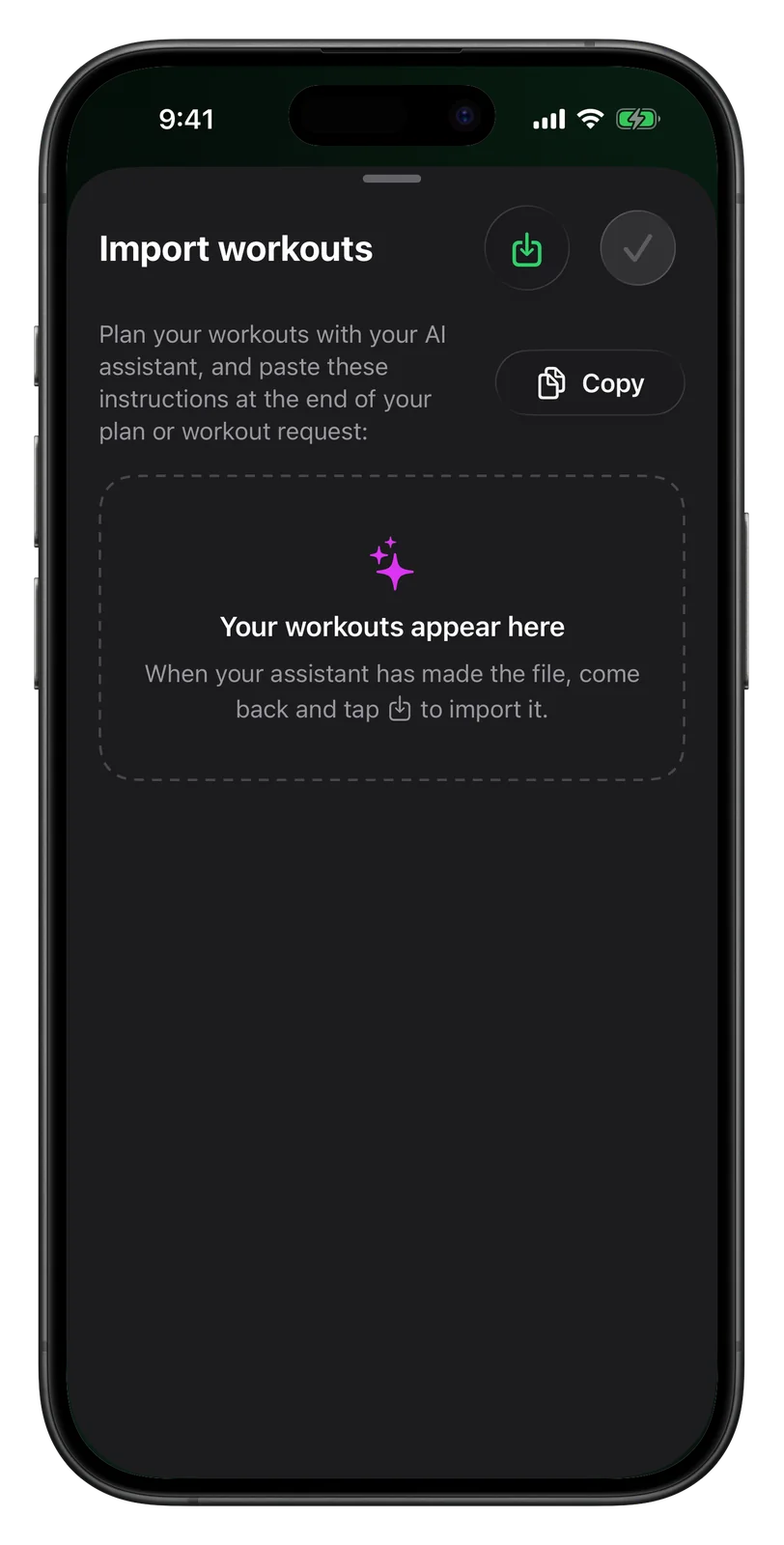
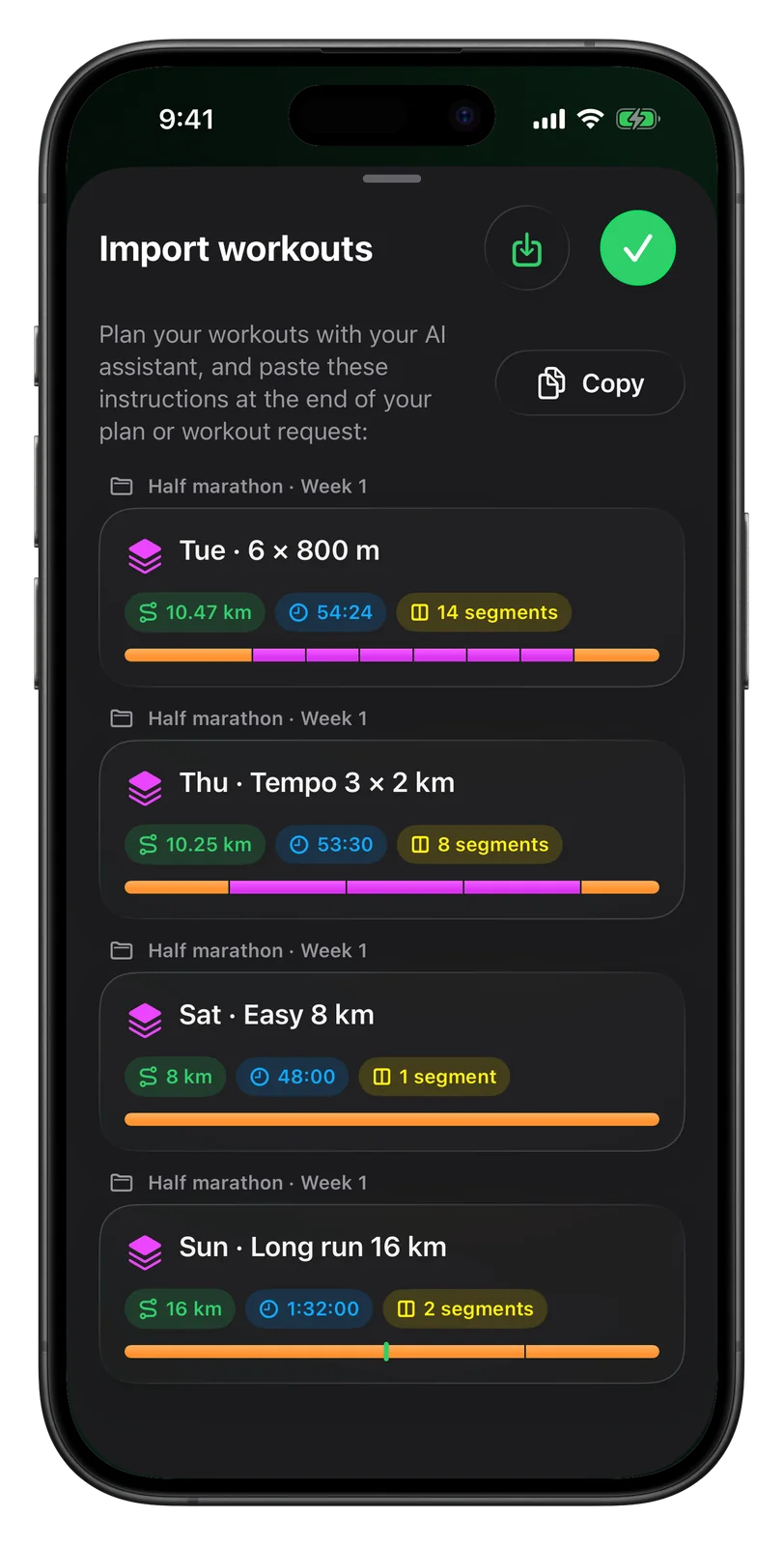
Step 1: Copy the instructions
In Vanoor on your iPhone, open My Workouts, tap + and choose Import Workouts. Tap Copy; the button changes to Copied!. The copied text describes the workout file format and its limits for the assistant. It follows your units setting: with Miles, it asks for miles and seconds per mile, and with Kilometres, for metres and seconds per kilometre. Choose your unit in Settings (the gear on the Home tab) under Units before you copy.
Step 2: Ask your assistant
In ChatGPT, Claude or Gemini, write your request as usual: the race, your recent times, how much you run now and which days you can train. Then paste the instructions at the end of the same message. They ask the assistant for a downloadable file named something like workouts.vanoor. If the assistant cannot create files, they ask it to reply with the JSON alone. The instructions also tell it to give every workout of one plan the same folder, such as the week.
Step 3: Open the file in Vanoor
There are two ways in:
- Open the file from the assistant or the Files app and share it to Vanoor. Vanoor switches to My Workouts and opens the import sheet with the file loaded.
- On the import sheet, tap the import button at the top right and pick the file in Files. Vanoor reads
.vanoorand.jsonfiles.
If your assistant could only reply with text, save that reply as a .json or .vanoor file and import it the same way. Vanoor skips a code fence or a sentence before or after the JSON.
Step 4: Check the workouts
The workouts slide in as cards, in the order they are in the file. Workouts that share a folder sit under that folder's name, shown once as a header with the number of workouts. Tap a card to open it in the workout builder and change a pace, a distance or a name. Go back and your changes stay. If you import a second file, its workouts are added to the list.
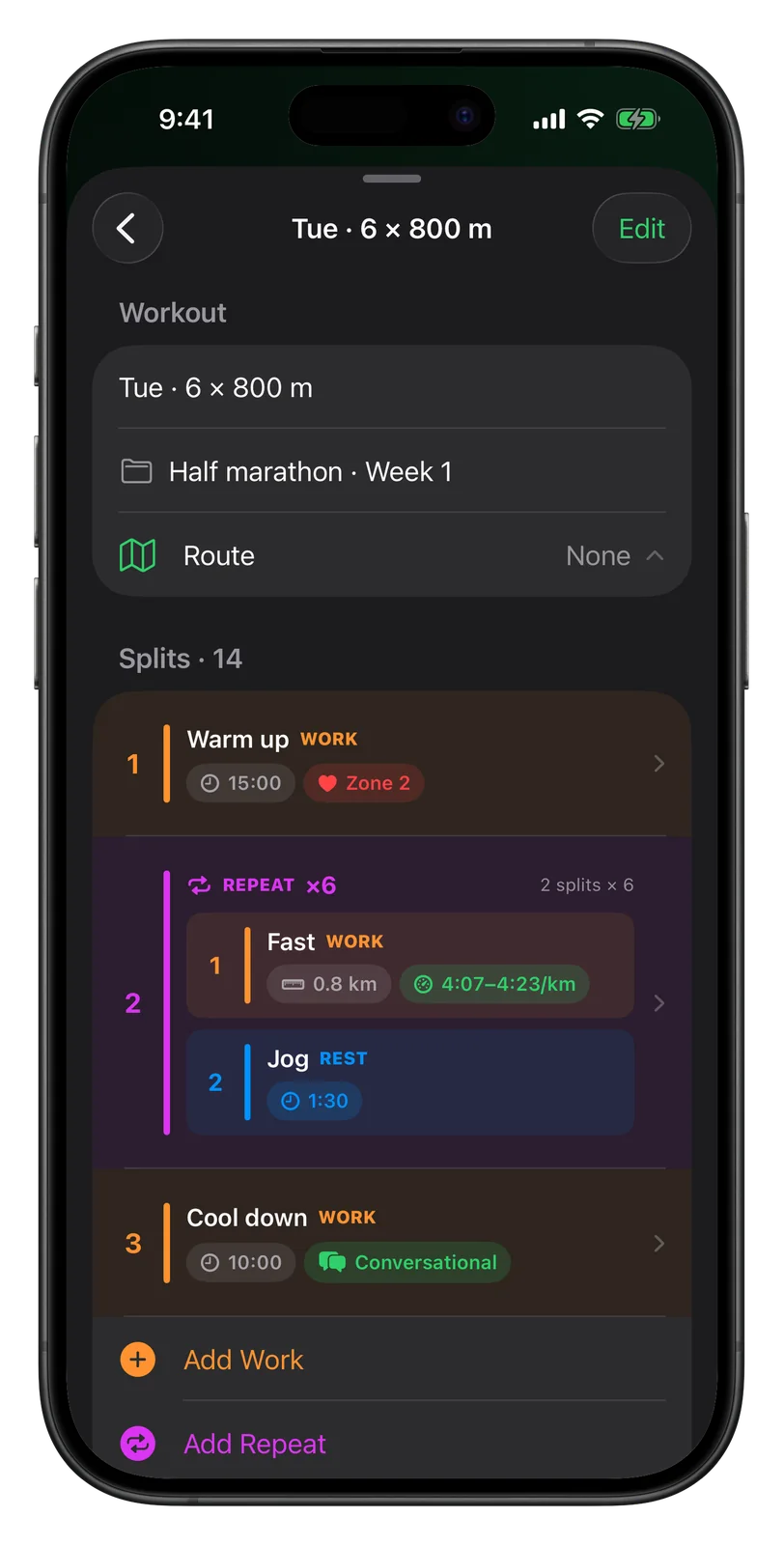
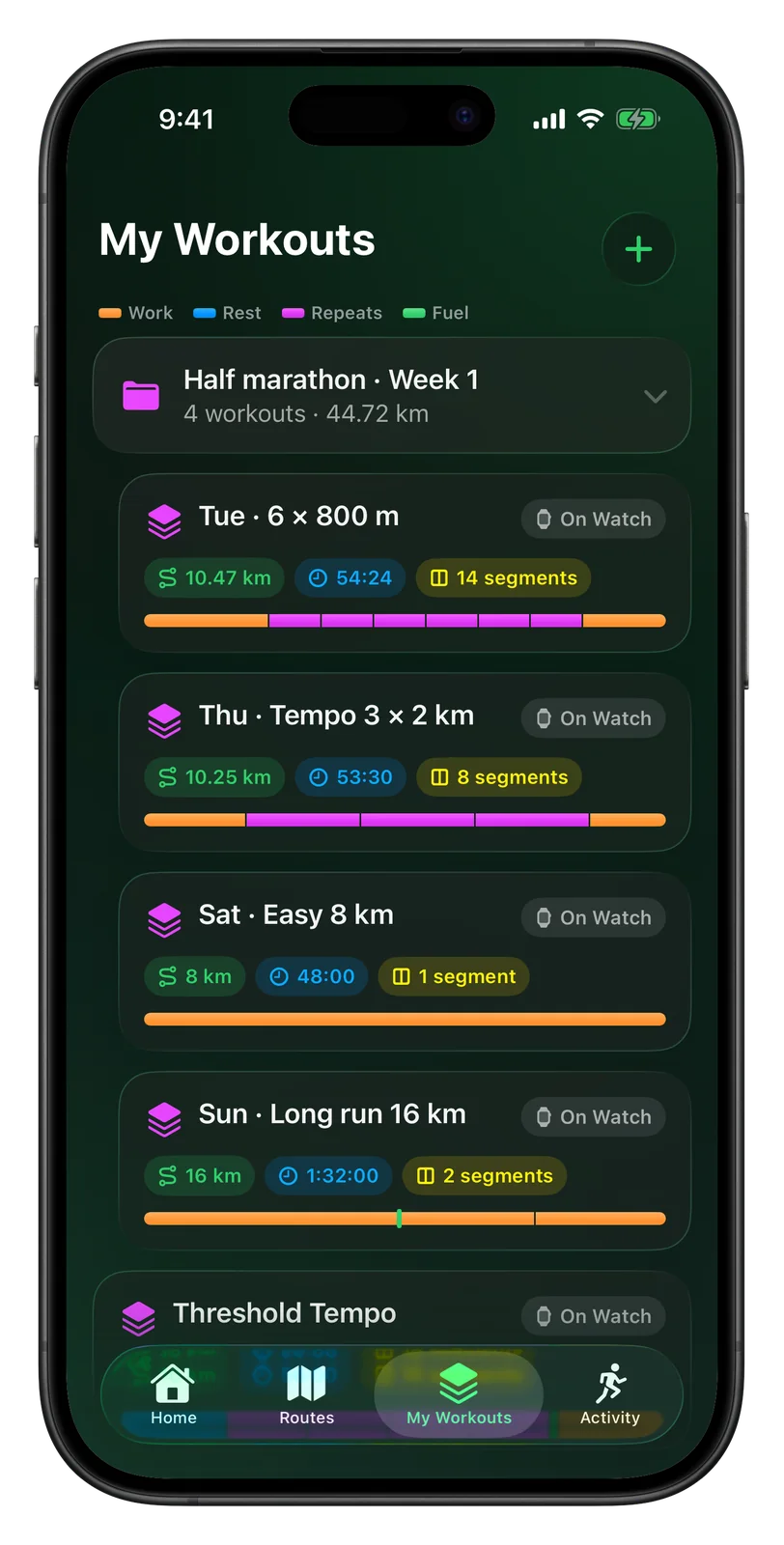
Step 5: Save them all
Tap the green checkmark at the top right. Every workout on the sheet is saved at the top of My Workouts, inside its folder, and synced to your Apple Watch. On the Watch they appear under My Workouts in the same order, with the folder name under each workout.
If something goes wrong
When a file cannot be imported, the sheet shows an orange message saying why:
- "This file isn't a Vanoor workout file" means the file is not in the format at all. Ask your assistant for the workouts again, as a
.vanoorfile. - A message about the format or a missing "schema" means the assistant changed the layout. Copy the instructions again and ask for a new file.
- A message that starts with a workout and step, such as Workout 2 "Easy 8 km", step 3, names the exact problem. Paste it back to the assistant and ask it to fix that step.
- If a file has more than 50 workouts, ask for the plan in smaller parts, such as one week per file.
Related guides
Picked by shared topics.
Keep the Watch. Upgrade the run.
Vanoor: offline route navigation, race pacing and structured workouts on the Apple Watch you already own.
Get Vanoor on the App Store 7-day free trial · $9.99 once, no subscription · no account